“The job is done. Please see the photos.” What would help your client understand the work behind them?
After cleaning, a repair, or an inspection, sending photos is a familiar way to wrap up. A few days later, though, those images may not explain which room they show, what was requested, or what still needs attention.
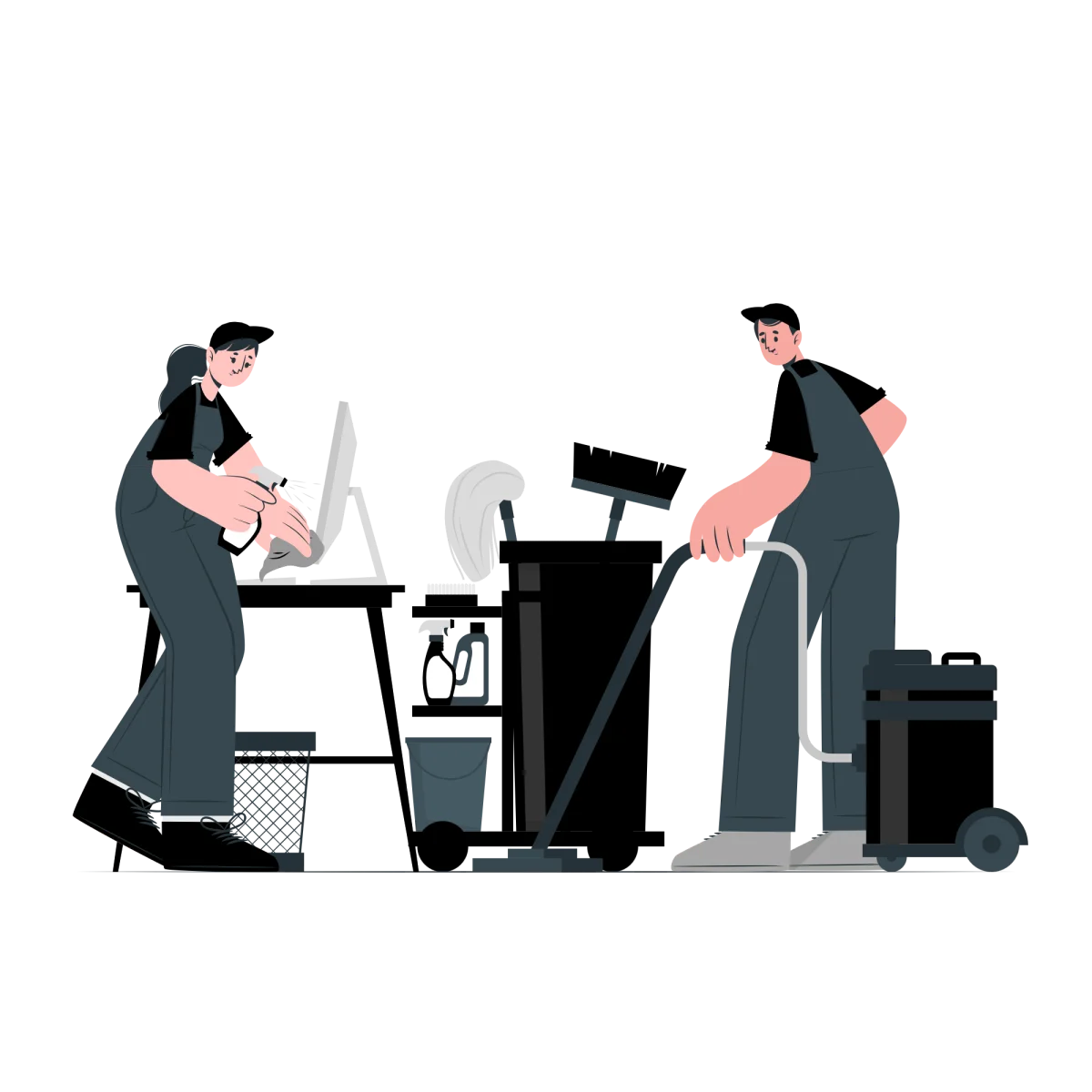
A Completion Message Is Not the Whole Record
A message says the work is finished. A work completion report explains when and where it happened, what was done, and what the result was. Linking photos to the work items gives them context that a longer stream of images cannot provide.
Keep using the communication channel your client prefers. Send a short message with a PDF containing the details, so the client does not have to piece together separate messages and attachments.
What to Include in a Work Completion Report
- Date and location: identify the visit this record belongs to.
- Requested scope and completed items: distinguish what was agreed from what was delivered.
- Before-and-after photos: make it clear which area or item is being compared.
- Exceptions: note existing damage, exclusions, or why something could not be completed.
- Follow-up work: state what needs attention and when it will be reviewed.
- Amounts and payment instructions: include them only when relevant.
Not every report needs every field. An inspection may focus on checks and defects; a creative project may focus on deliverables and revision requests. Choose the details your client needs to understand the result.
Record What Remains, Not Just What Went Well
“Inspection complete” does not tell the next person whether anything was left unresolved. “Power and operation checked; return after the replacement part arrives” separates completed work from the next action.
Record exclusions requested by the client and damage noticed before work began. A report should describe what actually happened, not make an incomplete result look finished.
Turn an ILJI Schedule Record into a PDF
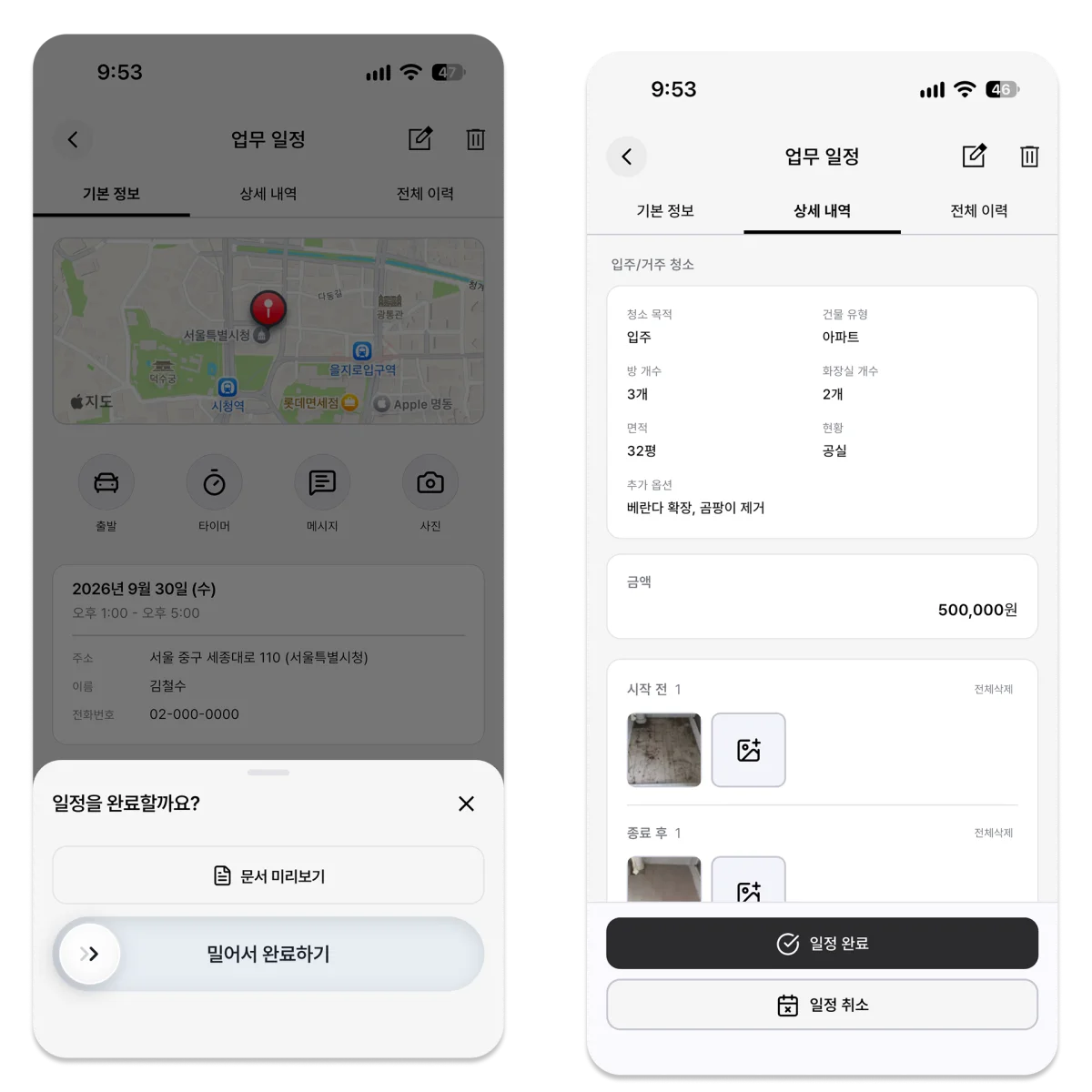
ILJI work forms let you keep customer details, the location, check items, and notes inside a schedule. Field mode also supports recording work time and before-and-after photos.
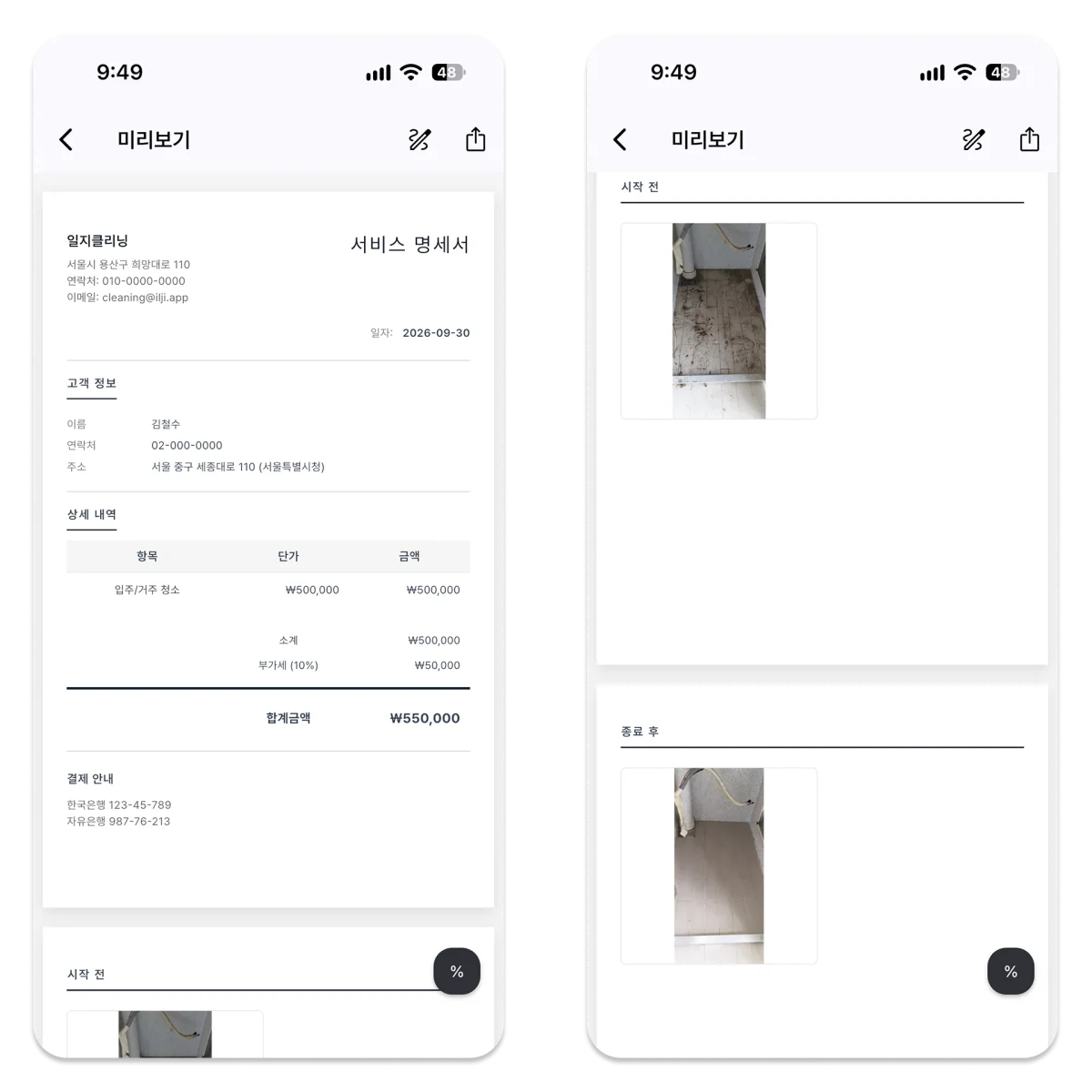
After completing work registered with a regular work form, review the document preview and share a PDF. Quick-form work does not offer the same document-viewing flow, so choose a work form when the job needs a completion document.
Documents can be used for payment guidance or as result-focused reports. Amounts depend on both payment guidance and the form’s amount-field setting. A signature can be collected on the current device, but it does not automatically sync to other devices.
Review the Actual File Before Sending
- Check the date, customer, and location.
- Compare the completed items with the agreed scope.
- Make sure the required photos appear in the PDF.
- Check exclusions and follow-up actions.
- Keep the final shared PDF and delivery record where you need them.
Creating a PDF does not verify every detail in it. ILJI documents are a convenience for sharing work records, not a statutory receipt or tax-document issuance service. Keep the schedule record and the file you actually sent distinct.
For the next job, put the date, completed items, and remaining work beside the photos before you share them.