When work contacts fill your personal address book, keep their schedule history with them too.
If you keep saving people you know through work to your device contacts, business associates will start to mix among your family and friend contacts.
A phone number alone cannot tell you what happened at the last meeting or when the next appointment is.
ILJI Contacts lets you save only the people needed for your schedules. Link those contacts to schedules to build a history by person without moving the entire device address book.

1. Save Only Work Contacts in ILJI
You can create a new contact in the Contacts tab at the bottom.
Enter the information you will actually use in your schedule: name, phone number, email, company, address, and notes.
Contacts can be categorized as Work, Personal, or Other.
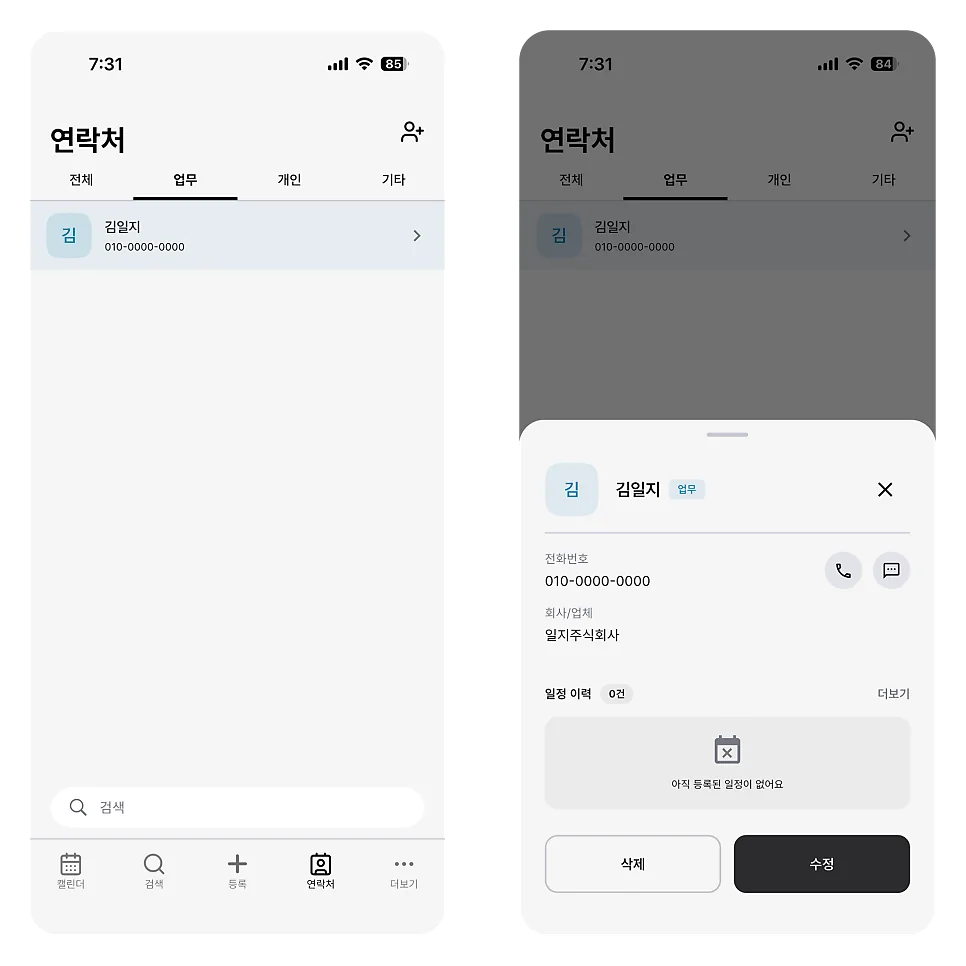
These categories do not define the relationship. They make contacts easier to find when linking a schedule.
Use Work for business contacts and Personal for people you need in personal schedules.
2. Import Work Contacts Without Moving Your Whole Address Book
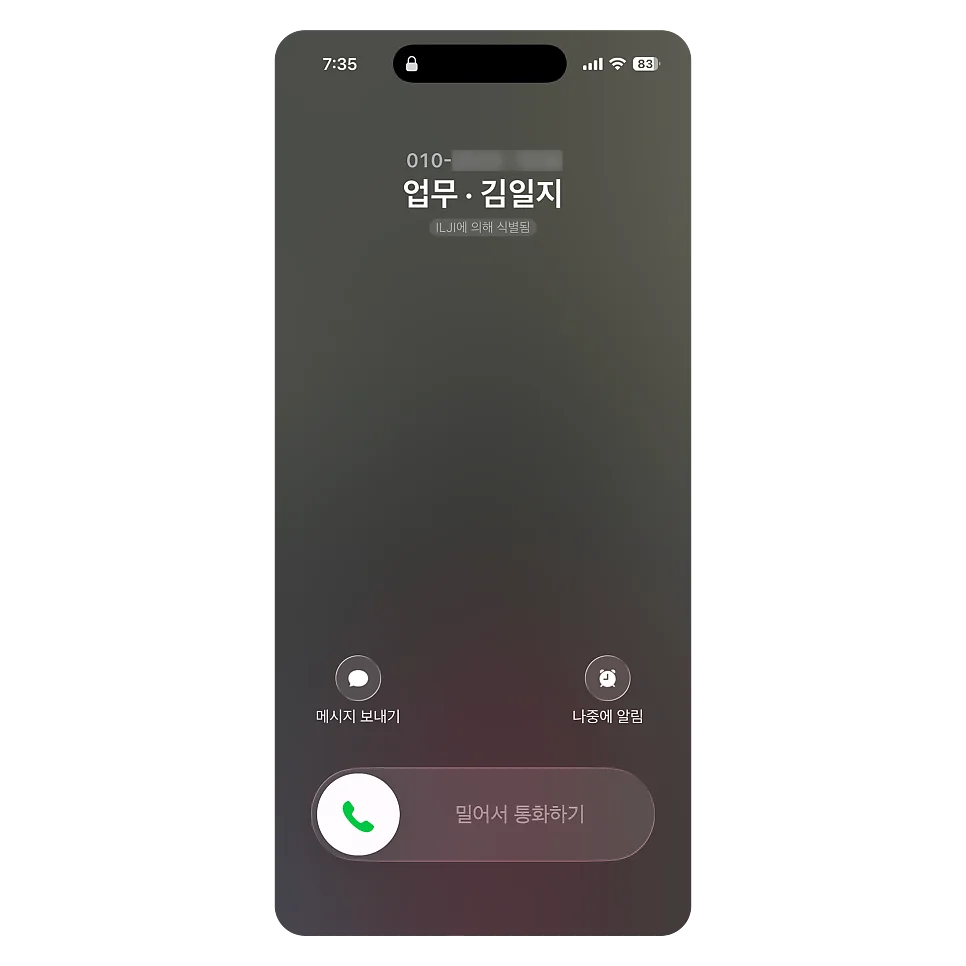
You can import names and phone numbers one by one from the device contact selection screen.
The full address book is not synchronized automatically, so family and friends do not need to be stored in ILJI.
You can import only the people who frequently appear on your work calendar into your ILJI contacts, leaving other personal contacts in your existing device address book.
After importing, the original contacts on your device will not change if you edit or delete them in ILJI.
Separating contacts by purpose keeps only the information needed for schedules in ILJI.
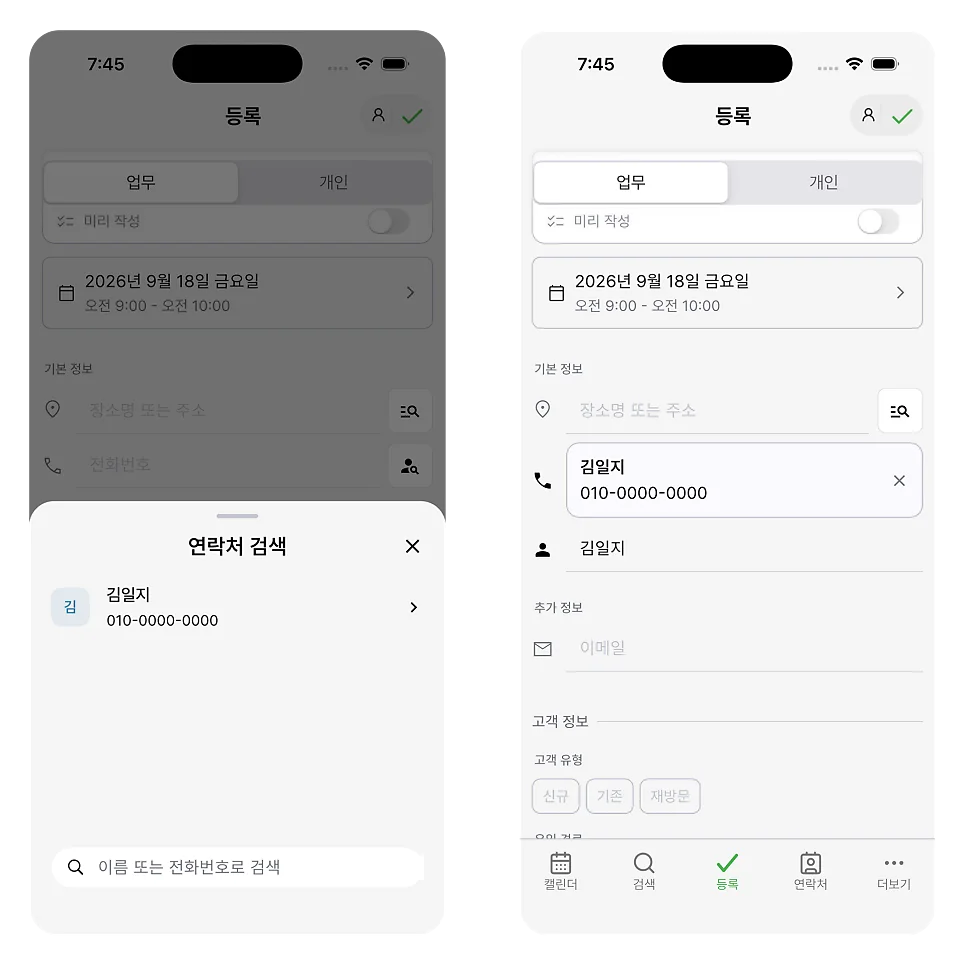
3. Link Work Contacts to Build a History by Person
In work forms that contain contact information, you can select a saved contact instead of entering a new name.
Schedules saved by linking contacts can be viewed as history on the contact's details screen.
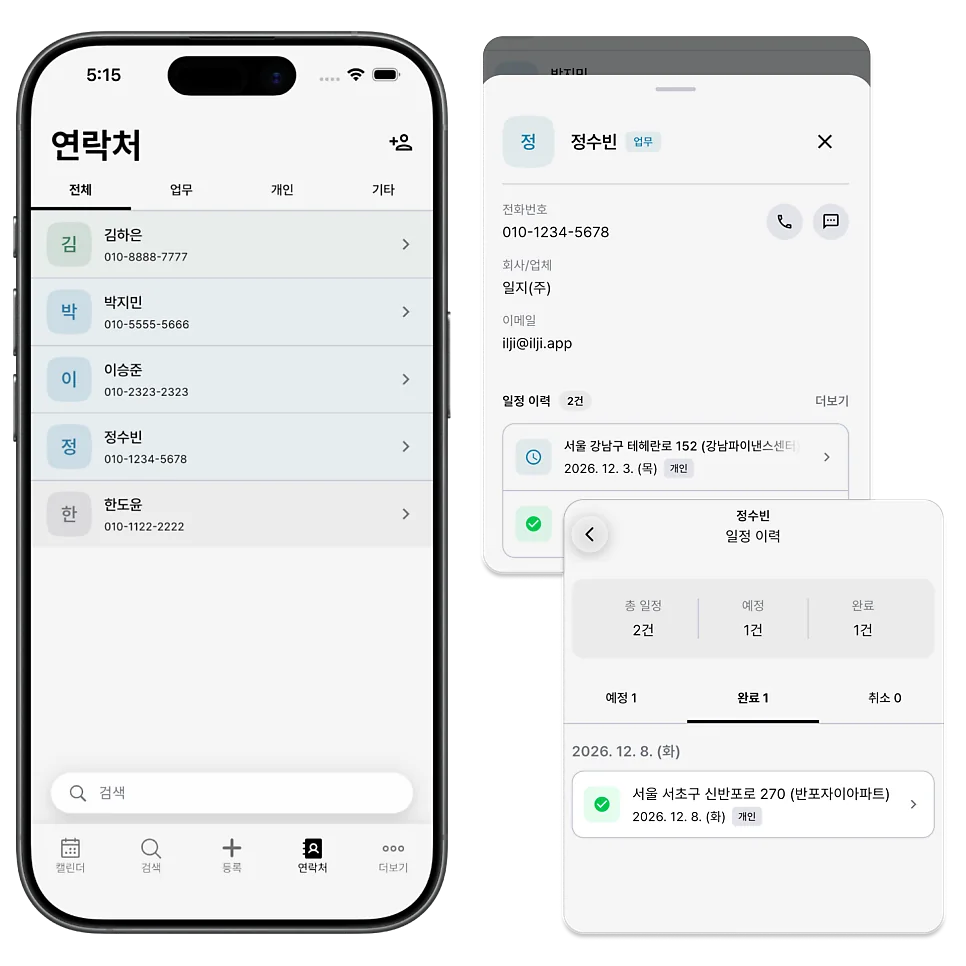
Instead of storing only a phone number, you can review which schedules involved that person and when.
Typing the same name does not link schedules automatically. If part of a person's history is missing, confirm that the correct ILJI contact was selected.
4. Distinguish Upcoming, Completed, and Canceled Schedules
Contact History shows the dates and status of linked schedules. Select one to open its full record.
Before the next appointment, review the previous date or the last inspection result for recurring work.
Deleting a contact does not delete its schedule records, but review the linked history before removing the contact.
5. Add Clues to Tell People with the Same Name Apart
If there are multiple people with the same name, write down recognizable clues in the company name or notes.
For contacts linked to frequent visits, save the address too. If you use calling features, confirm that the phone number is complete.
Separate work contacts also give you another way to find schedule records.
Not every schedule needs to be linked to a person.
Save people you meet repeatedly as ILJI contacts and link their schedules to avoid re-entering names and phone numbers.
You can also check past tasks and next schedules by person, allowing you to manage schedule history that was difficult to find using the device address book alone.
Start by saving one person who appears often in your work and link an existing or upcoming schedule.