Inspecting a newly listed property and showing a property to a client call for different checks. For your own listing, compare current terms with the site’s condition. After a client showing, identify unanswered questions and who needs to respond. In a co-brokered transaction, the listing office and the office accompanying the client may be different.
Separate what you observed, the terms another office provided, and the client’s questions. This helps you avoid presenting an unconfirmed detail as an agreed condition at the next showing.

Your Own Listings and Co-Brokered Properties
If you already use property-management software, keep changing terms such as price and move-in dates there. Use the visit form for the condition checked that day. For co-brokered listings, separate information received from another office from your own observations. If details differ, leave them for confirmation. Seeing a water stain is not the same as confirming its cause or repair scope; looking at parking does not establish a unit’s parking rights. Add the observed facts and remaining questions in notes when selections alone are insufficient.
When showing one property to several clients, keep property details separate from each client’s questions. Recheck changeable terms before another showing and put each client’s follow-up in the relevant visit. For co-brokered properties, note questions for the other office. After several showings, identify which property each question concerns. Keep the event as an account of what was confirmed at that visit, and reconfirm current terms before advising another client.
Fields Available in the Built-In Form
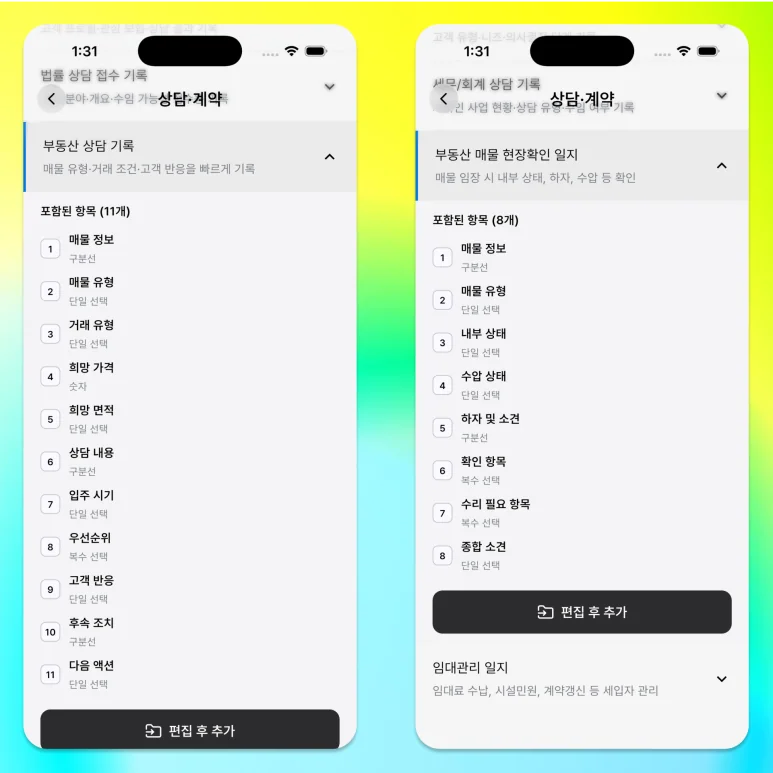
Under Consultation and contracts, ILJI’s Property site inspection form includes Property type, Interior condition, Water pressure, Inspection items, Repairs needed and Overall assessment. Link the customer and address to the event and use notes for details that do not fit the choices. Inspection items include water stains, mold, daylight, noise, parking and elevators. A selection alone does not describe the condition: daylight and parking, for example, need explanatory notes. Leave a condition unset if you did not enter the property or test water pressure. Property types include apartments, villas, commercial units, offices and land. Add recurring missing conditions to your own form. Overall assessment offers Recommended, Average and Not recommended; use notes for the client’s questions or hesitation, and create a follow-up appointment when a response is needed.
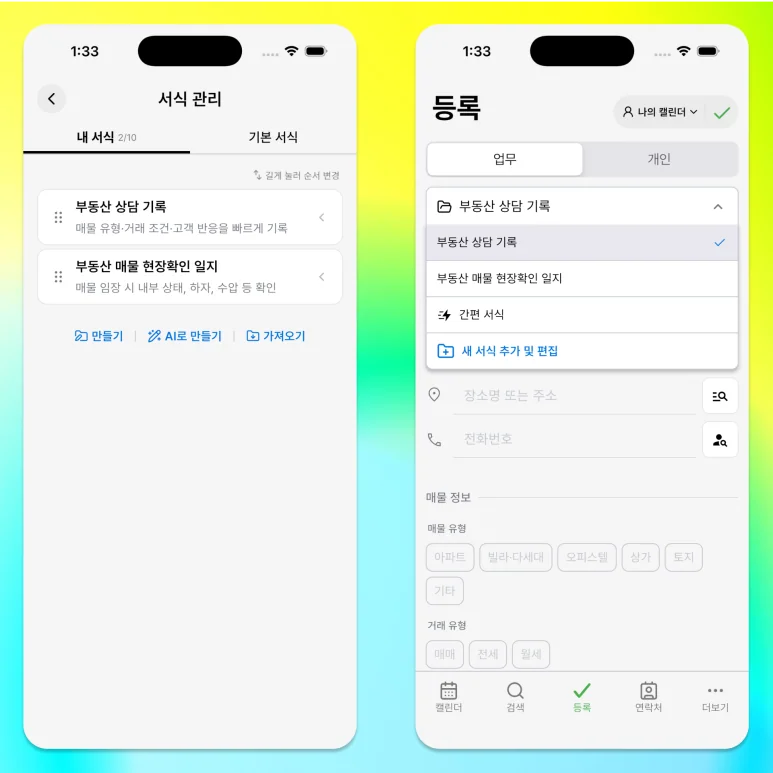
Selecting Boiler or Window frames under Repairs needed does not mean the owner has agreed to repairs. If you receive an answer, note who confirmed it and the agreed scope. If you use one form for both inspection and client showings, consider a Visit type field. If you often look up a co-brokered listing, add Listing source and ID. Otherwise, start with the existing fields.
Use It Alongside Your Existing Property Software
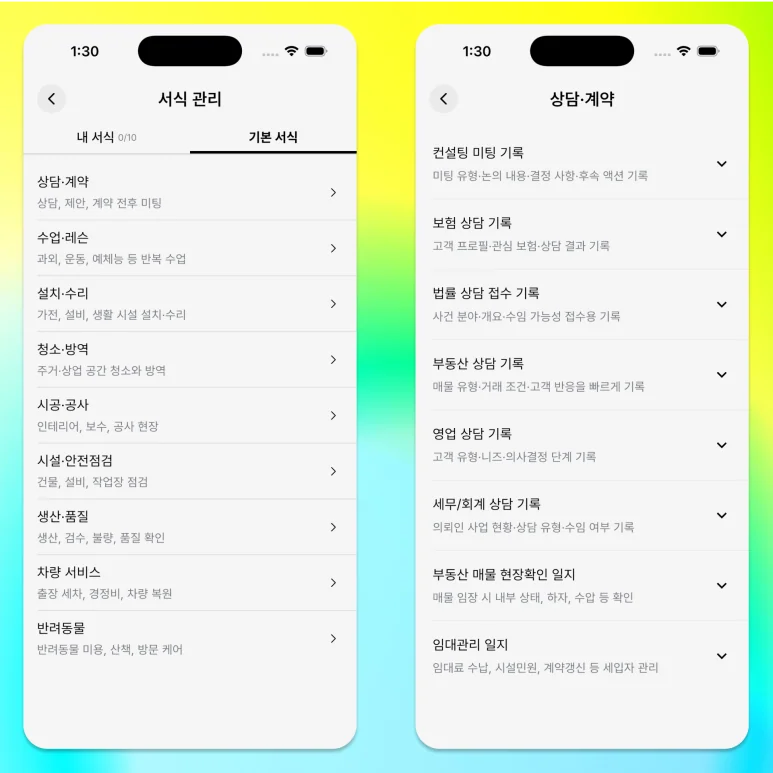
For example, the Korea Association of Realtors’ Hanbang system supports managing listings under My properties, viewing co-brokered properties through national and regional networks, and customer and schedule management. Source: https://ma.kar.or.kr/m/contents.kar?page_id=2020 In ILJI, keep observed conditions and questions to answer with the visit. Listing IDs and transaction terms do not transfer automatically from other software. Add the source and ID if you need to look them up. If your current software already covers visit details, avoid entering the same information twice. Go to Form management → Built-in forms → Consultation and contracts, select Property site inspection, then review Edit and add to save your version.
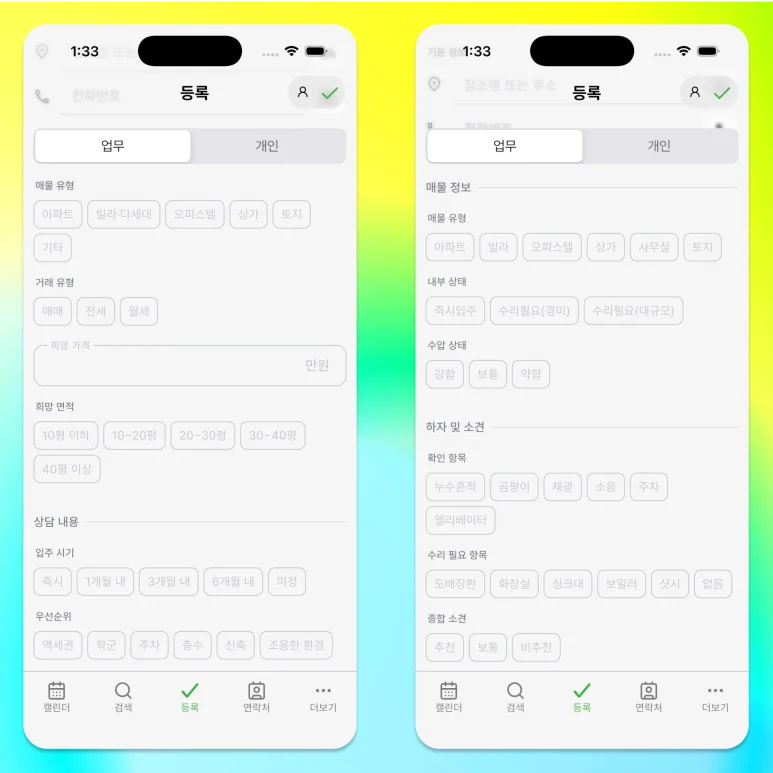
Keep current property terms in your existing system and use ILJI’s visit appointments for site observations and the next contact.