You have created a new work form.
It has customer details, visit time, location, photos, equipment, materials, and notes. On a phone it is so long that people wait until after work to fill it in. A form intended to prevent missing details ends up delaying the entry.

The aim is not to collect everything. It is to leave enough useful information on site for the next person to continue.
Start With the Moment Someone Uses the Entry Again
Look at what you needed to find again over the last month. A customer asking about scope, a colleague looking for access instructions, and a manager checking completion need different fields. Adding information nobody uses only adds effort.
Common needs may include visit purpose, observed facts, work done, unfinished items, and the next action. The details differ by work: cleaning needs areas and extra requests; repairs need symptoms and parts; consultations need promised information and follow-up. Do not force every job into one long form.
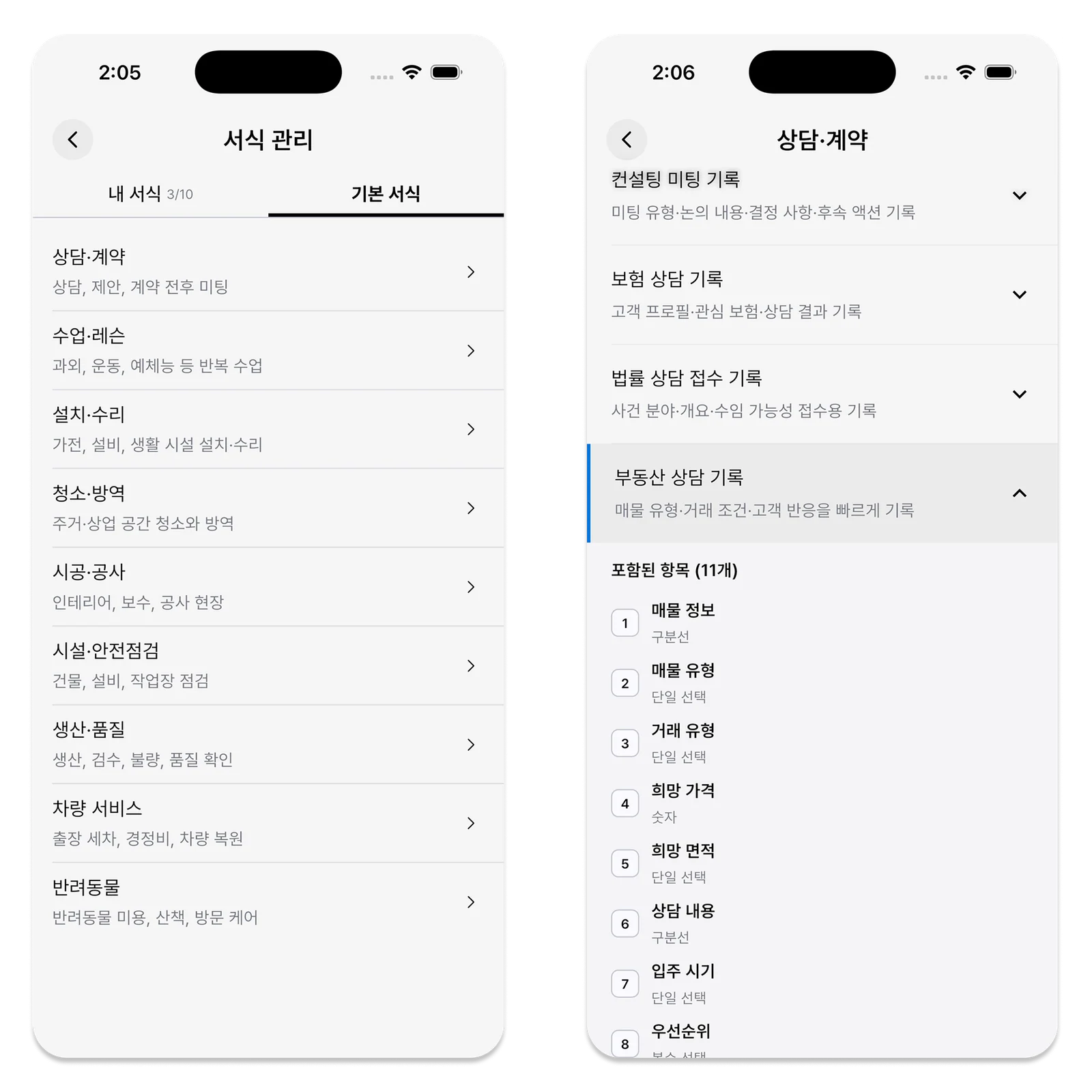
Start With Few Required Fields
Writing long answers on a phone can be difficult on site. Require only what would block the next task if omitted. A repair form might require findings and the reason work remains unfinished, with photos only when needed.
Checklists should support repeated steps rather than impose every possible check on every site. Repeated “nothing to note” answers may mean a field is poorly chosen. Make the question clearer before adding more fields: “What needs checking before the next visit?” is easier to answer than “Notes.”
Give Photos and Shared Documents Different Jobs
A useful photo has a location and a time. Decide which areas need before-and-after comparison, and briefly explain the condition in the event notes. Distinguish work needing a customer-facing result from work needing only an internal entry.
Requiring the same attachments for every visit makes the important information harder to find. Follow company privacy rules for sensitive information, access, and sharing. A field’s existence is not a reason to enter every detail.
Revise the Fields After a Week of Use
A form is not finished when it is created. If the next worker repeatedly asks for missing information, add or clarify a field. Check why other fields stay empty and make rarely needed information optional. Tell the team what changed.
Editing a form does not automatically change events already registered, so check future bookings separately. Distinguish recurring omissions from one site’s exception before redesigning everything. A useful form is easy to fill in and useful to read after the visit, not merely complete-looking on screen.
Order Fields the Way the Work Happens
It should feel natural to check the customer and place, then move through today’s checks, results, and next action. Long administrative fields before the results can push important notes until later. Design for working on a phone, not only for reading a report at a desk.
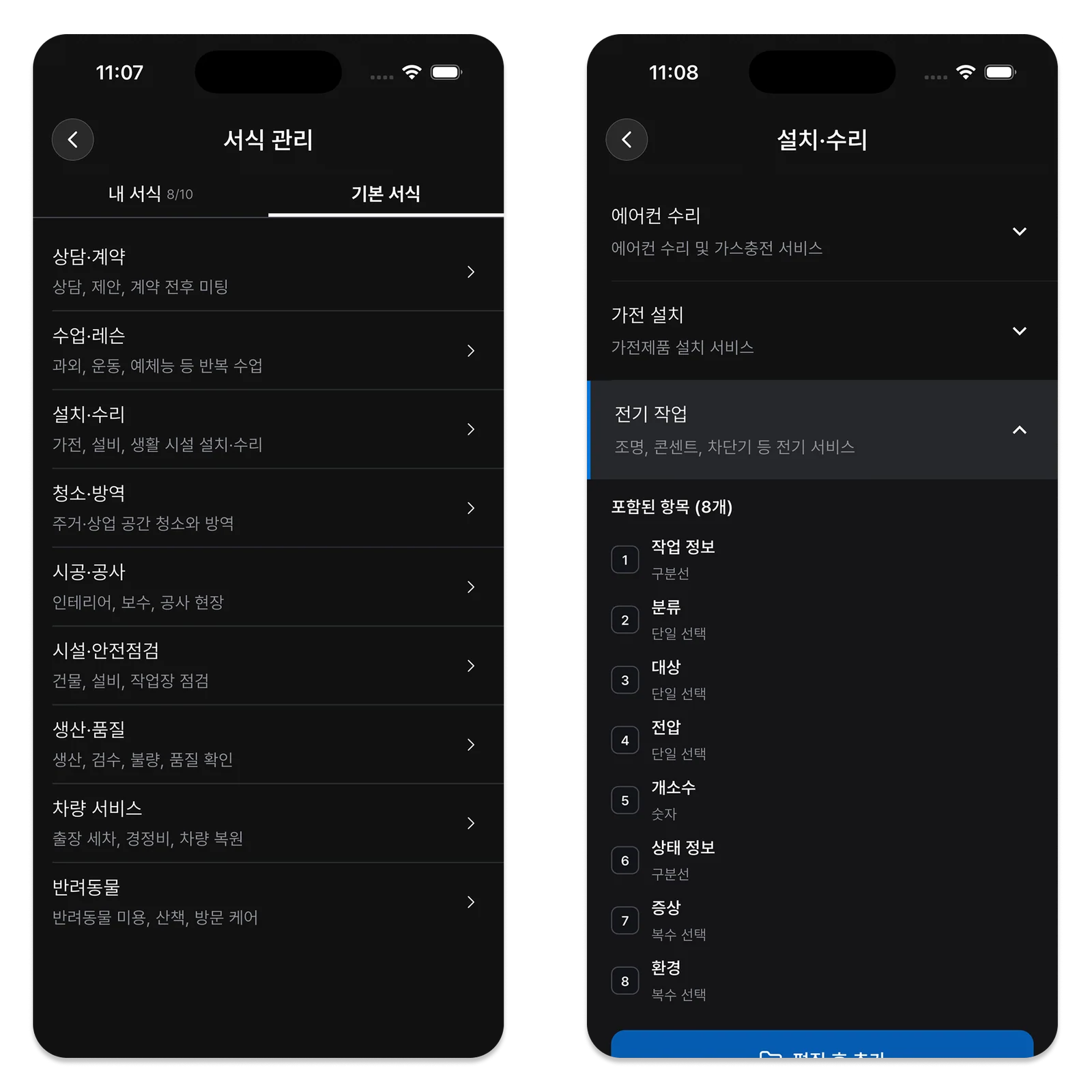
A checklist helps with repeated tasks, but leave room for unexpected conditions. The next worker should not miss a site change merely because it was absent from the choices. Add recurring exceptions to a later version of the form.
Decide Who Will Read the Form
A customer document and an internal team entry may serve different purposes. Customers need results and outstanding promises; colleagues may need more detail about preparation and work. Decide what to share with whom instead of expecting one long form to do everything. Check access when photos or contact information are involved.
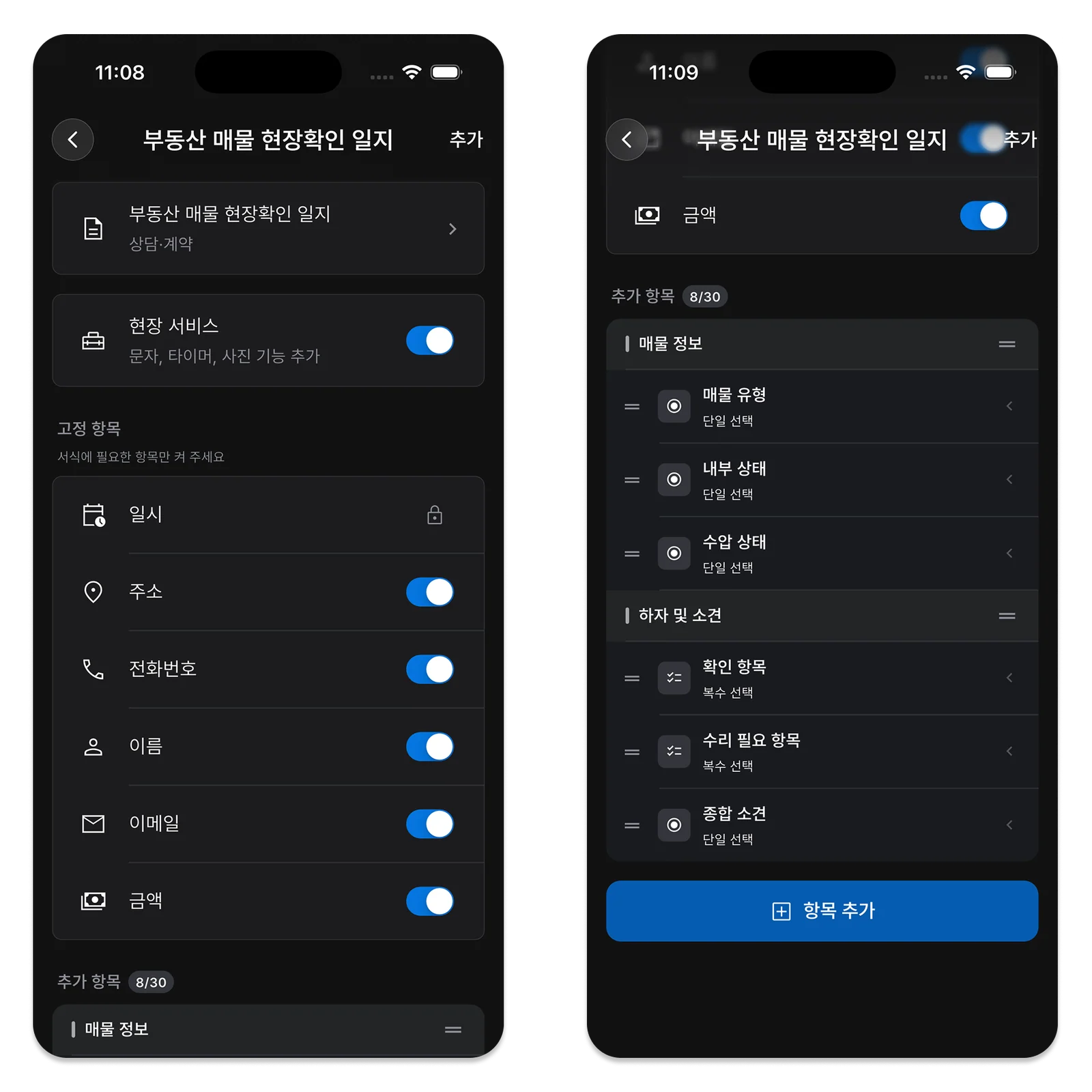
Try a handoff test: give a new assignee the last visit’s entry and ask what they would prepare for the next visit. If they cannot find the answer, the field may be missing or unclear. Clearer wording may solve the problem without adding another field.
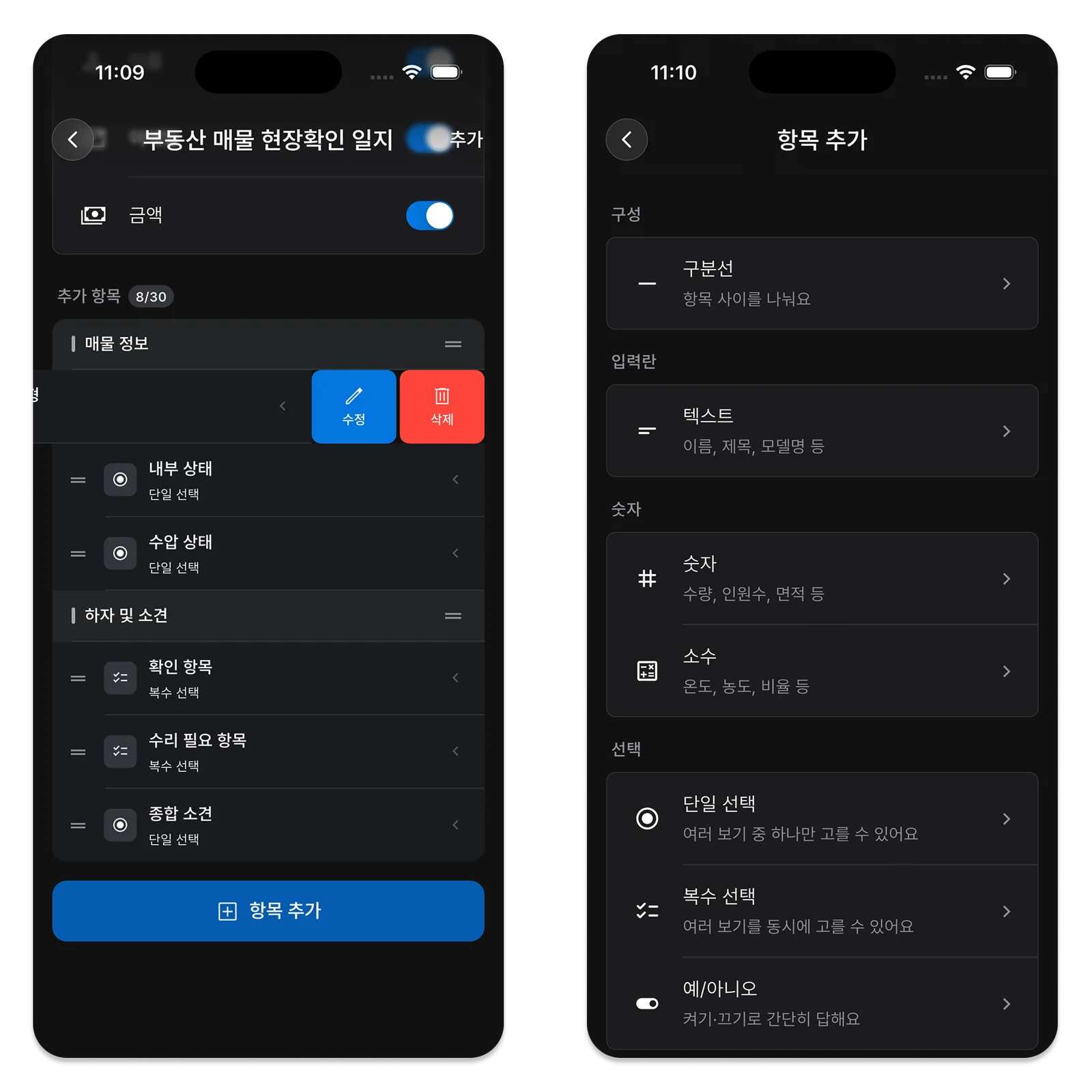
Change Only a Few Fields at a Time
Changing several fields every day leaves colleagues unsure which version to follow. Start with one or two repeatedly missing details and see whether next week’s entries improve. Remove fields that are no longer useful. More writing with the same follow-up questions is a sign the form may not fit the work.
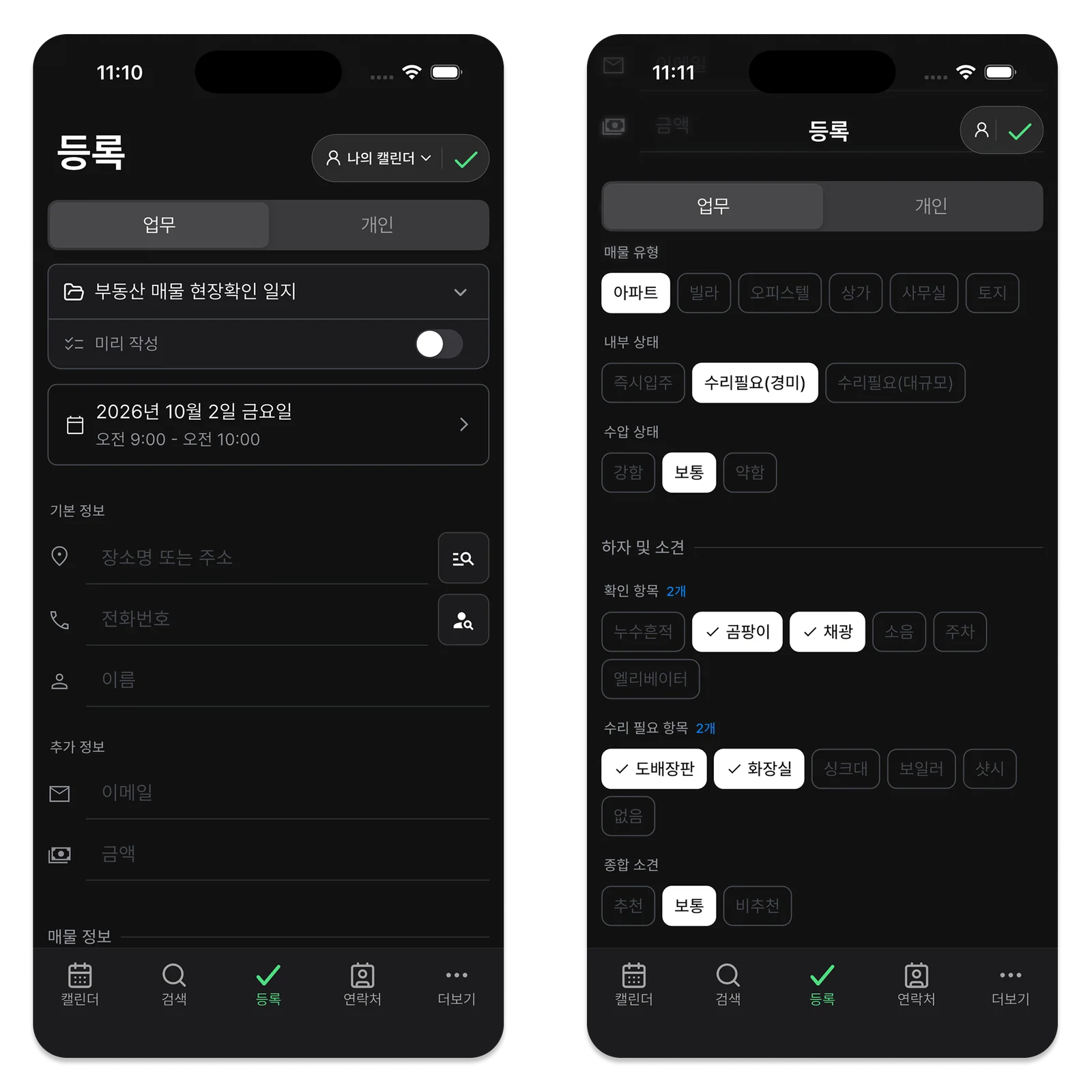
Do not assume people lack motivation if they avoid a form. Check whether their hands are busy, phone entry takes too long, or the questions are unclear. Design around when the entry can realistically be made as well as what it contains.
Building a Form in ILJI
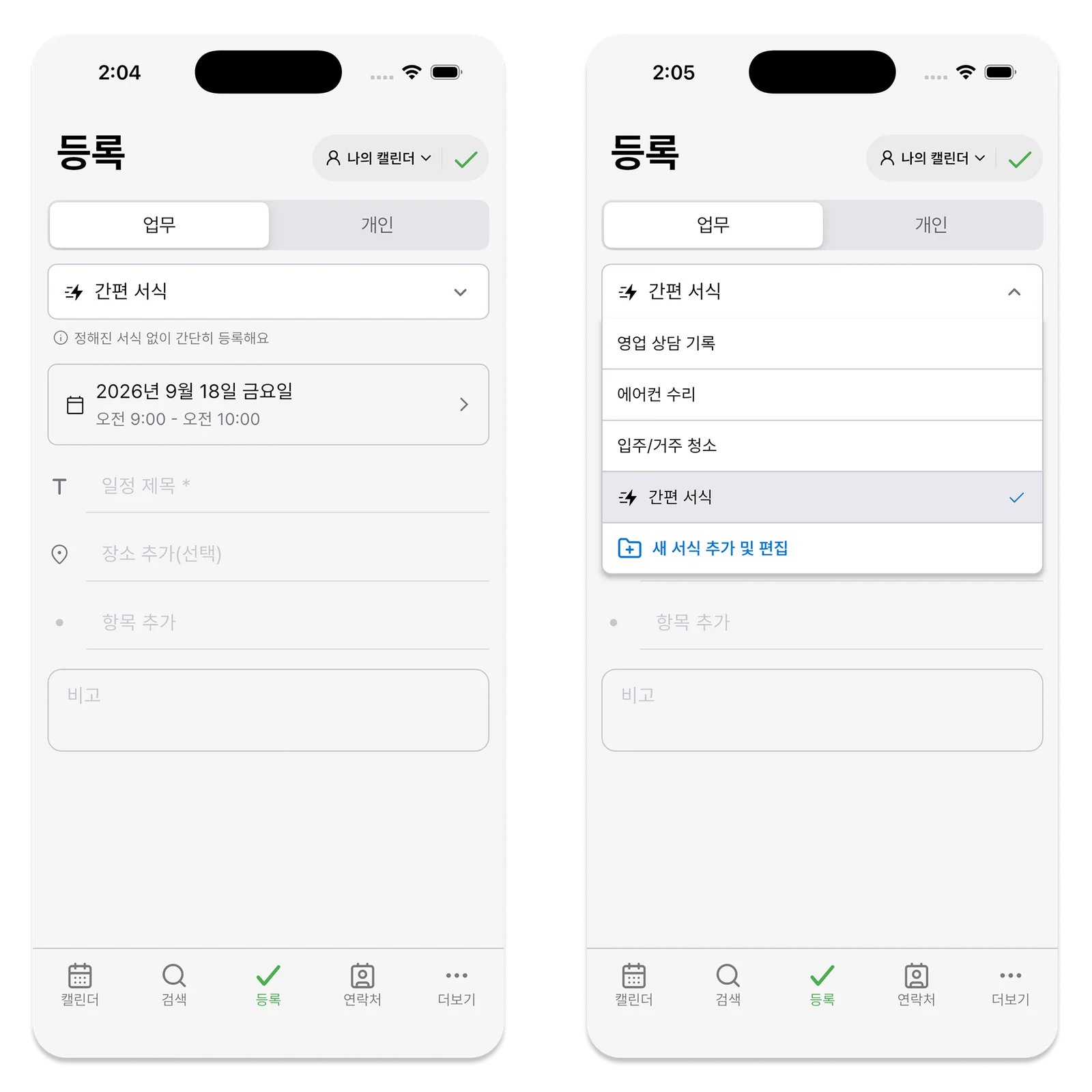
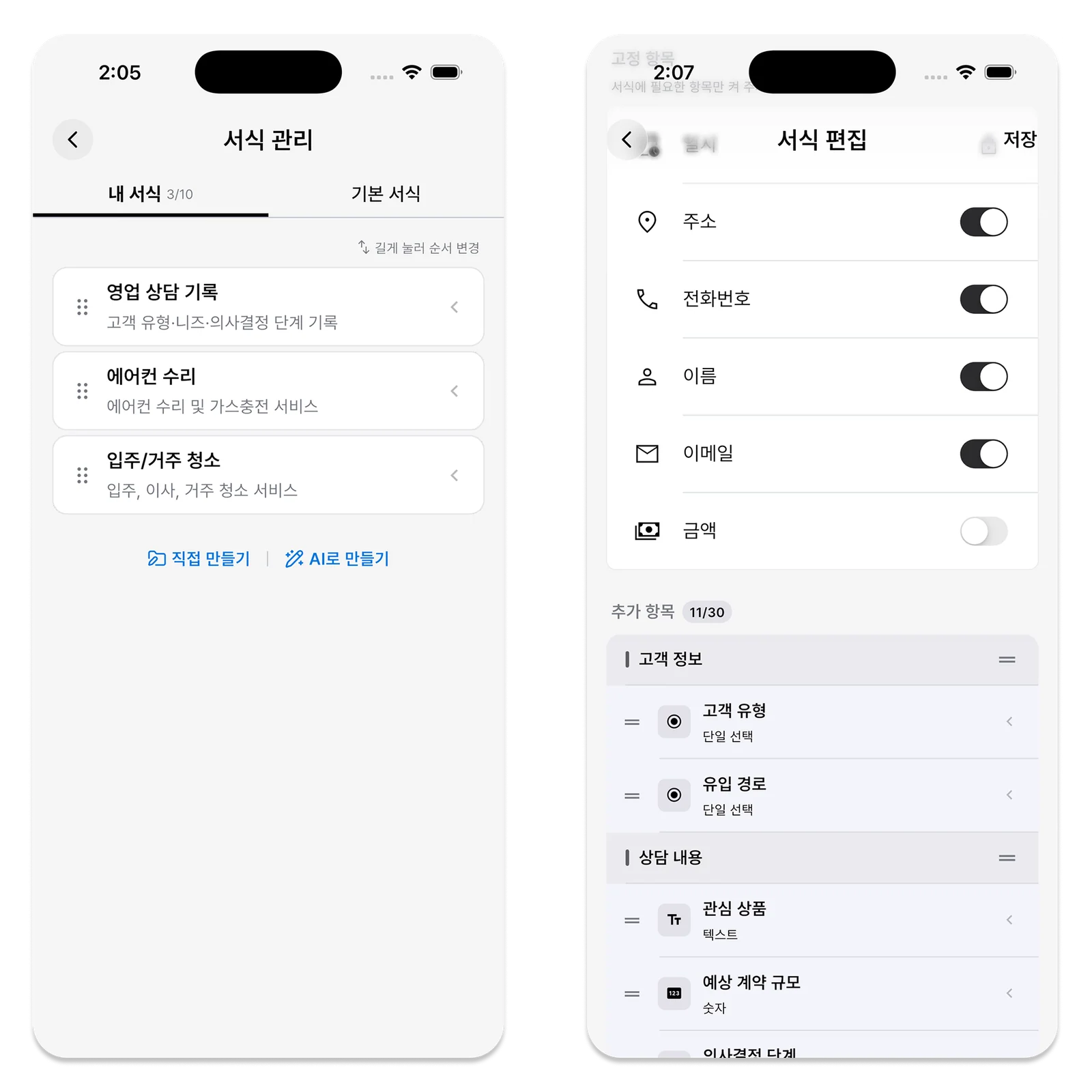
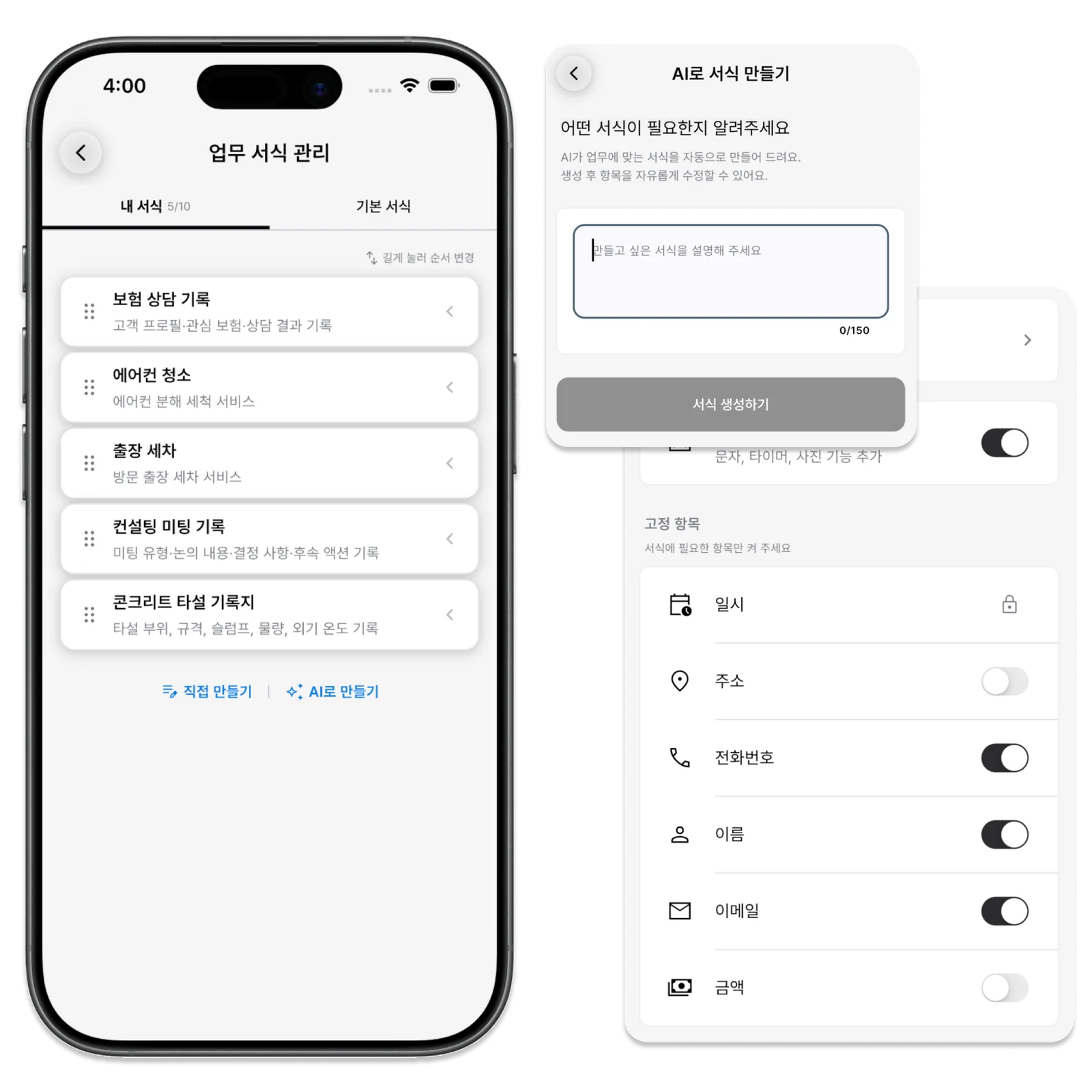
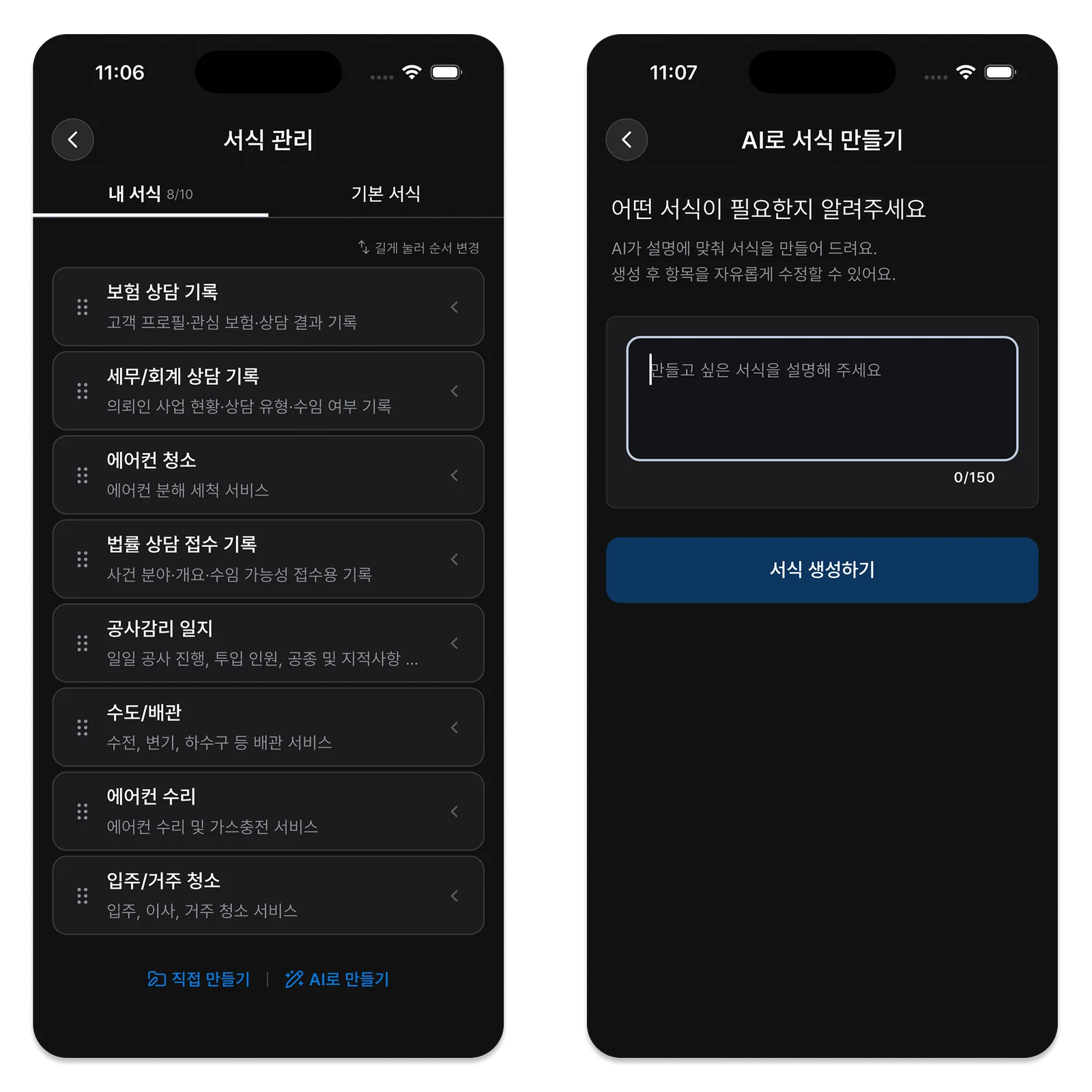
ILJI lets you create forms with fields for each type of work, or review and edit an AI draft before saving.

Quick form uses a title, location, checklist, and notes. For site photos and a timer, choose a form with Field Service enabled. Start with one common type of work instead of designing every possible field. If the next visit’s preparation finds the answers it needs, the form is already useful.