Reuse the structure of a work log instead of rebuilding the same form every time.

Documents, events, and checklists often repeat the same arrangement. The contents change, but the fields and order remain familiar. A template saves that reusable structure so the next document or event does not start from a blank page.
Adapt a prepared version or reuse an approach you have already refined. The idea is not limited to one program or kind of work: it can support projects, lessons, workouts, inspections, and personal checklists. What you reuse is the structure, not the answers from the previous entry.
A weekly checklist has new dates and results, and a lesson log has different participants and activities.
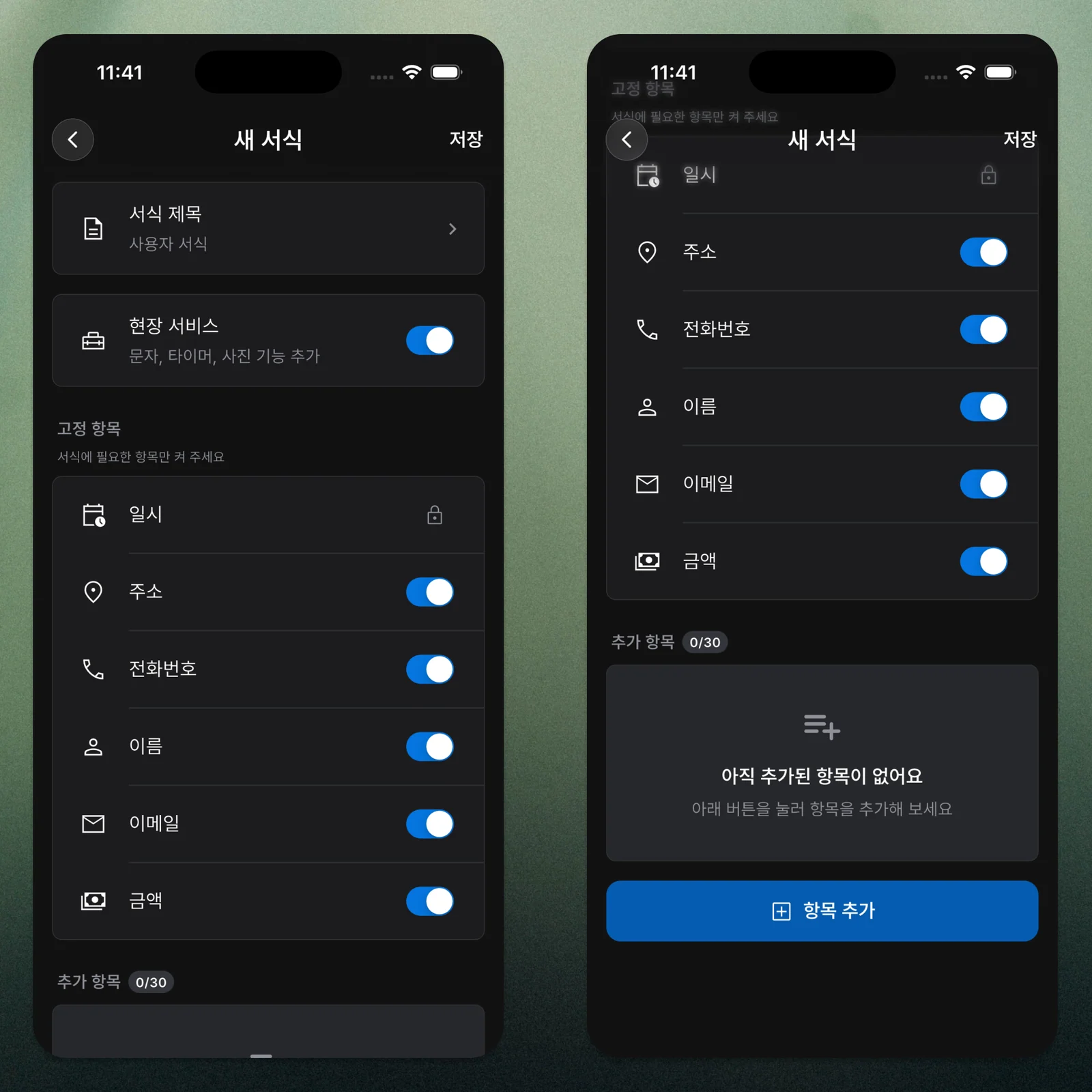
The reusable part is the set and order of fields. Start with a structure you have used, remove unnecessary fields, and add new ones as your needs change.
A Work Template Is One Use of the Idea
A work template defines a repeating structure for tasks such as project stages, consultations, meeting preparation, or visits.
The same principle applies to lessons, workouts, event preparation, and personal plans. “Template” is the wider idea; its purpose might be work, scheduling, or keeping a log.
In ILJI, Templates Are Called Forms
ILJI calls the feature for preparing and reusing an event’s fields “Forms.” Choosing the same form does not combine the entries: the actual answers are stored separately for each event.
The form defines what is shown, while each event keeps the answers entered at that time.
Basic fields can serve different purposes too: a name might identify a participant, assignee, or person to contact; a location might be a meeting place, delivery address, or work site.
Choose Fields Before the Next Event
Keep the basic fields you need, add fields and choices for the purpose, and make only essential answers required.
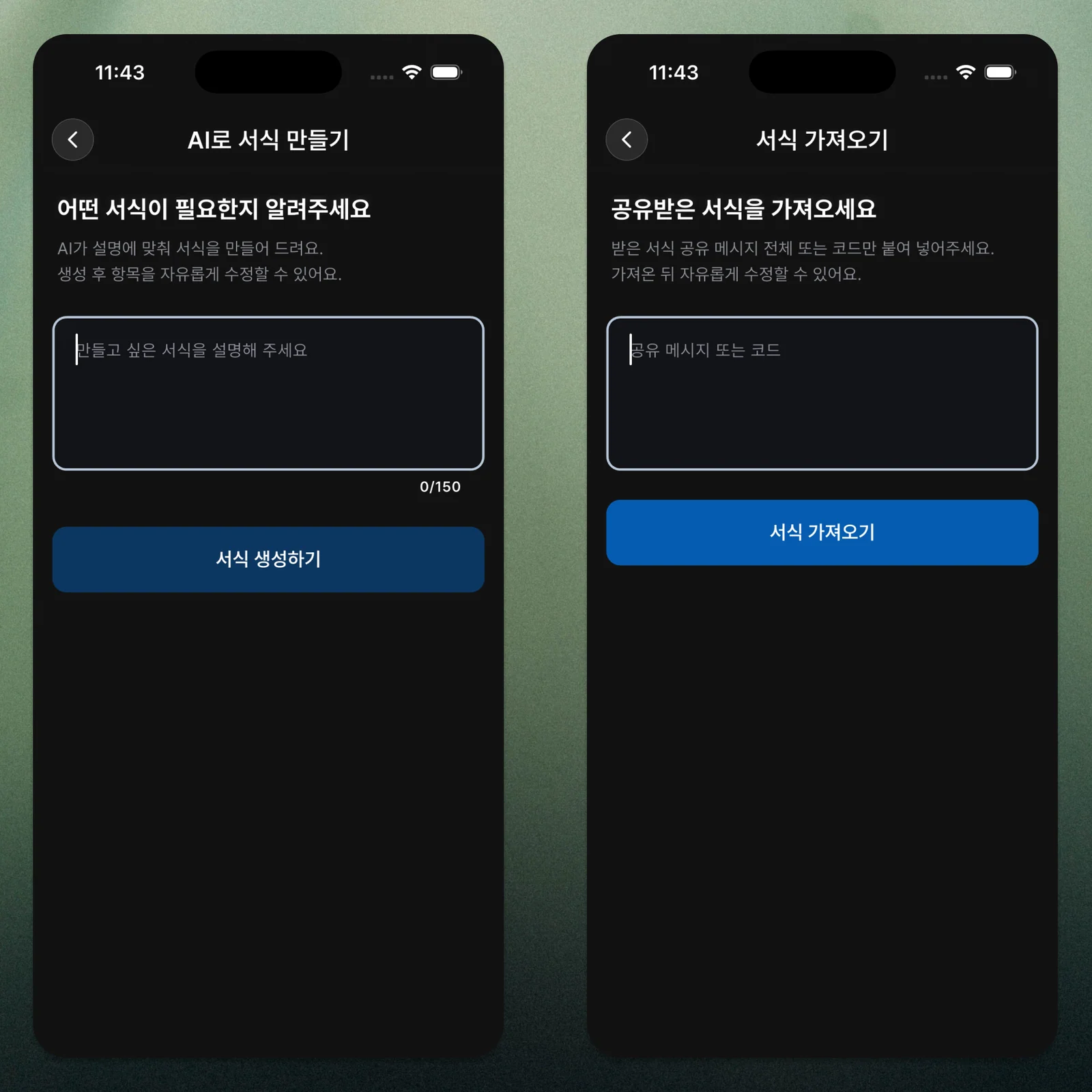
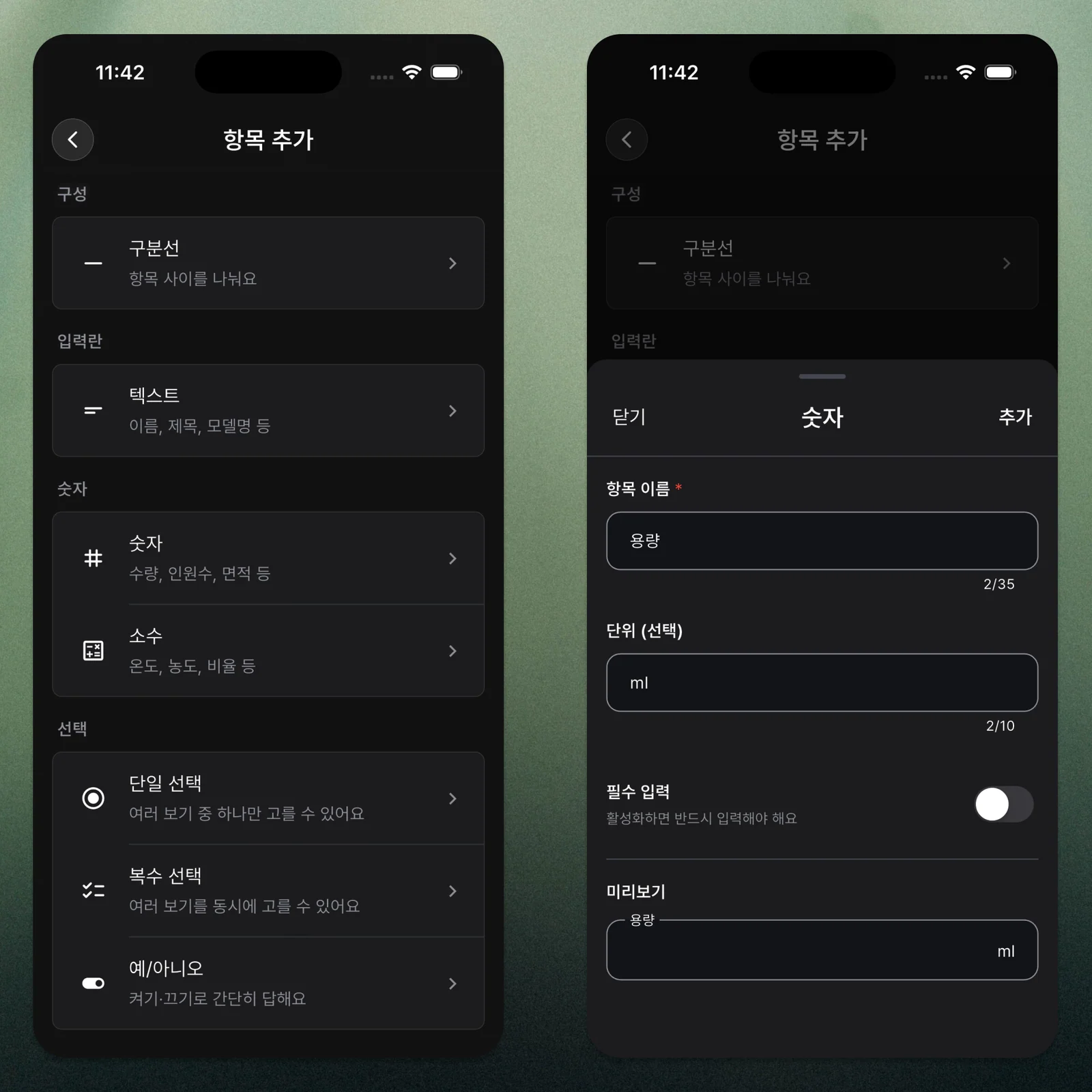
Use text when answers vary. Use single choice for one option and multiple choice when several may apply. Numbers suit counts and measurements, while an on/off field suits a check. Enable Field Service in the form when you need messages, a timer, and before-and-after site photos.
Four Ways to Start a Form
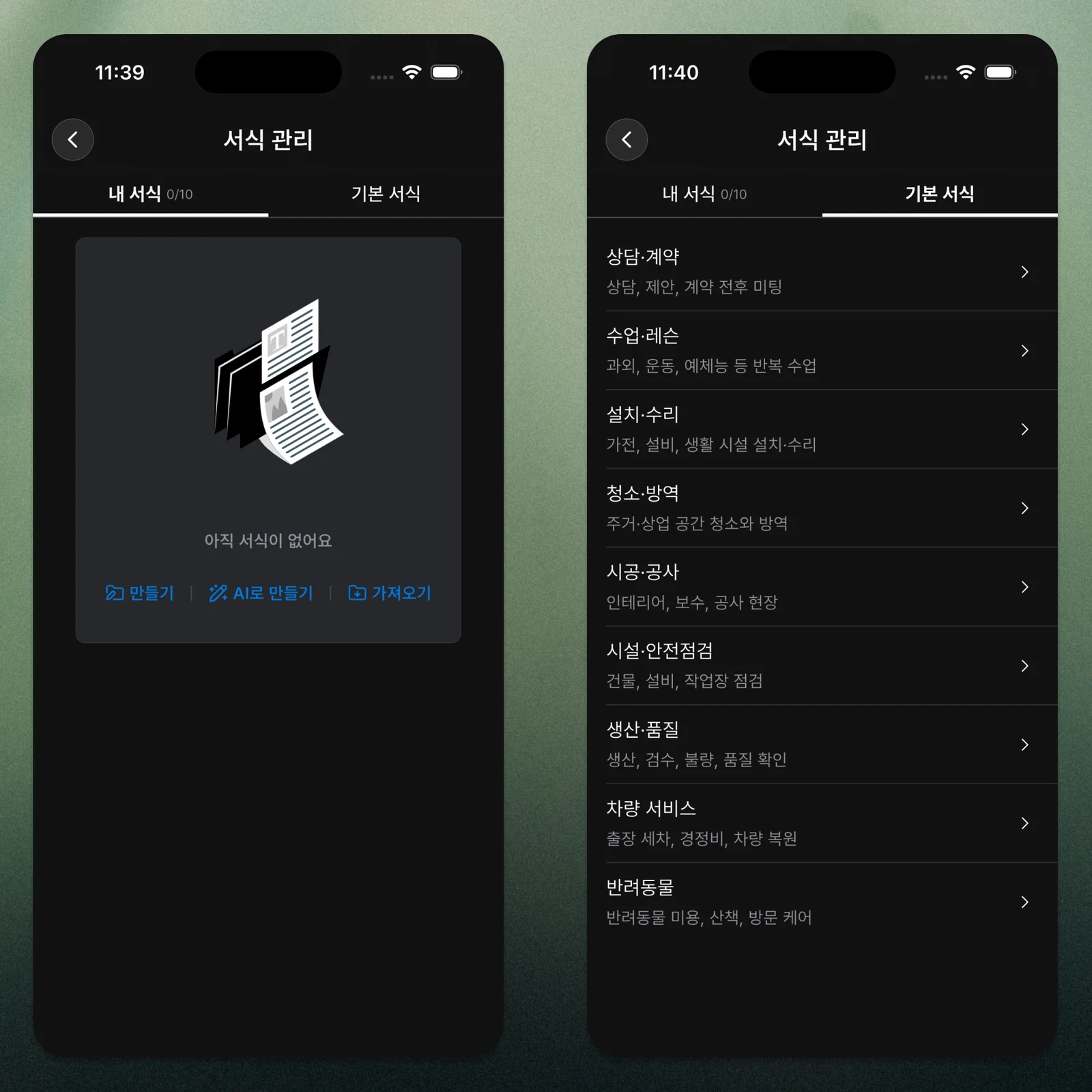
- Adapt a built-in form: choose one close to your purpose, review it, remove unnecessary fields, and add the edited version to your forms.
- Create it yourself: bring over a familiar checklist or arrangement. Use input fields for changing answers and choices for repeated ones.
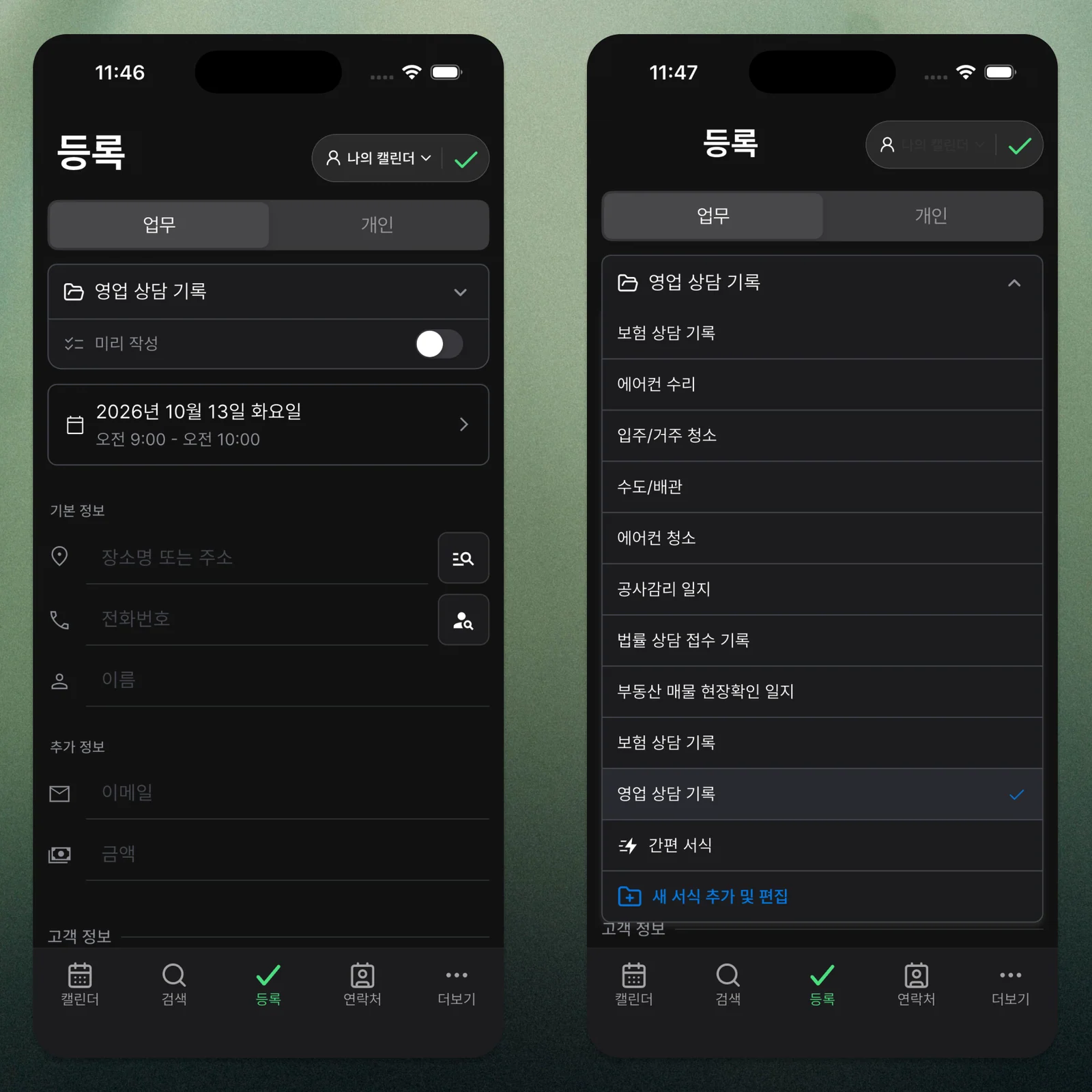
- Start with AI: describe the form, then review and edit the suggested fields. Generation alone does not save the form; add it yourself after checking.
- Import a shared form: enter a shared message or code, review it, and add your copy. The copy is independent of the original and can be adapted.
Build Around the Work You Actually Repeat
Begin with what you already write or check, not every field you might someday need. Review existing documents, checklists, and entries. Separate information checked at the start, details entered during the work, and results confirmed at the end.
Choose an input type for each: text for changing answers, choices for recurring ones, and required input only where an omission matters.
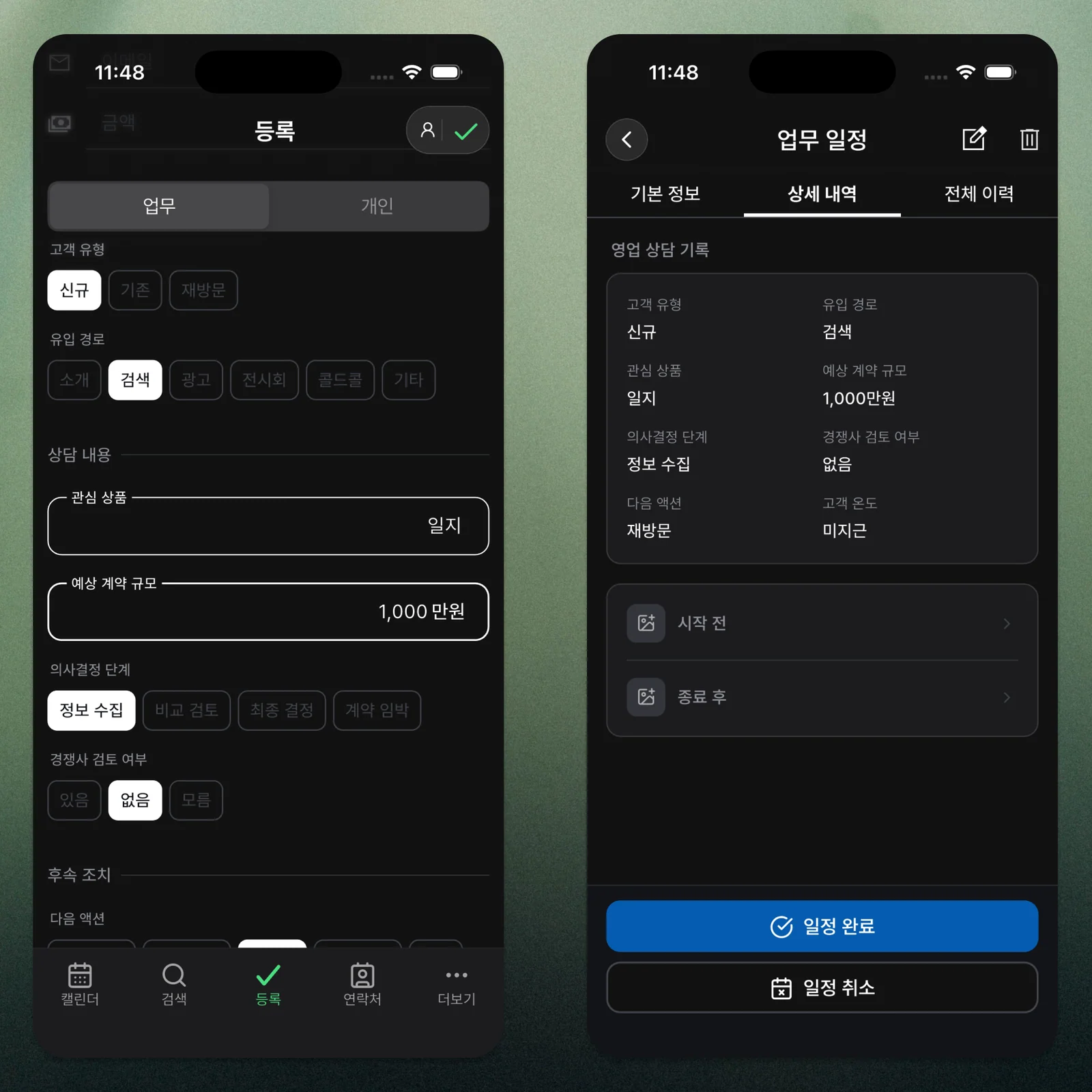
Try the form on one real event. Remove unused fields and add anything missing until the structure is easy to reuse next time.
Use the Same Structure as a Team
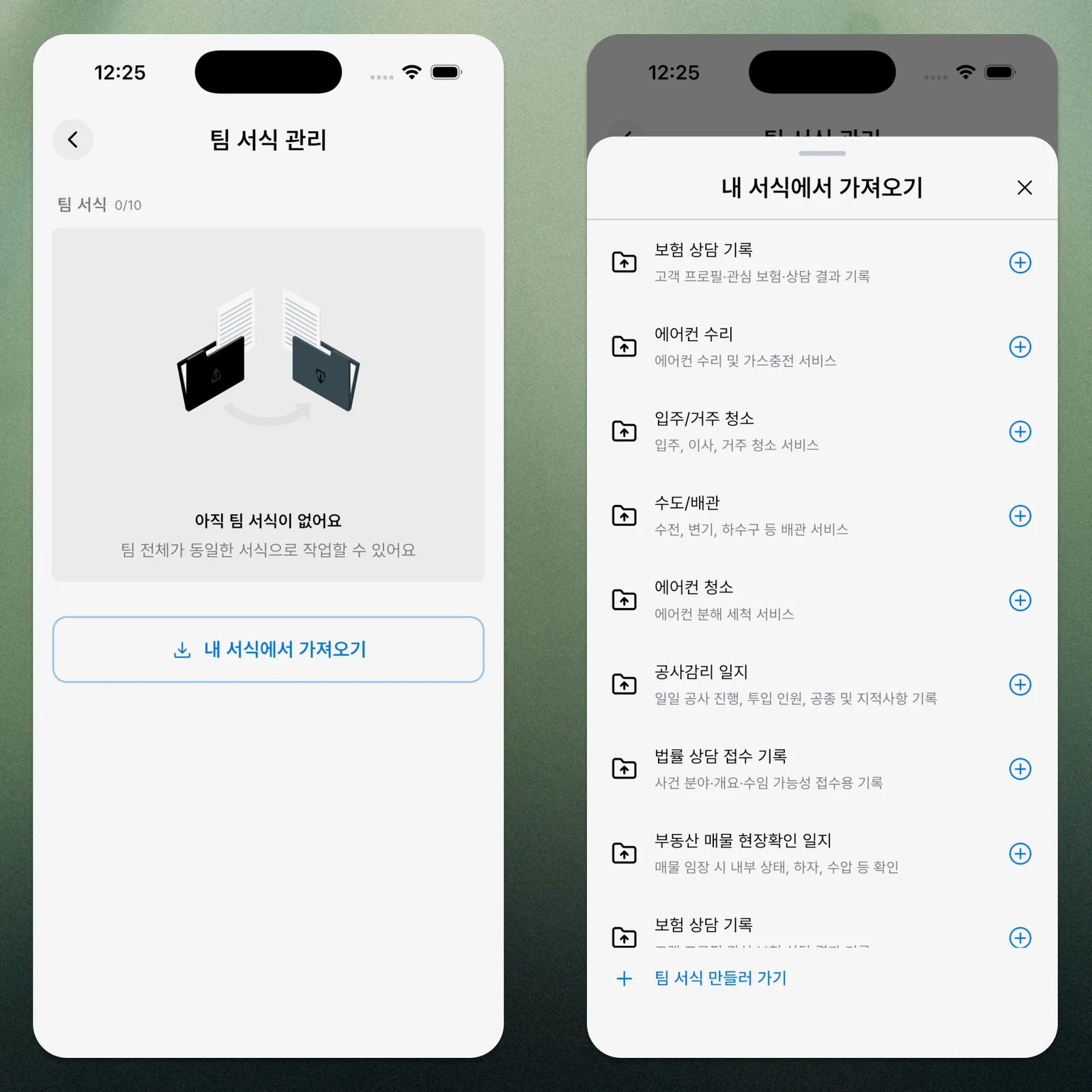
Team forms give members of a team calendar the same fields even when different people do the work. Copying a personal form into a team calendar creates a separate team form that can be adapted for the team.
Each saved event also retains the form structure used at that time. Later edits or deletion of the original form do not replace the fields and answers in existing events. You can improve the current form while keeping earlier entries.
A Template Is a Starting Structure, Not a Finished Answer
You do not have to adopt someone else’s complete arrangement unchanged. Save a useful set of fields and an order, then reuse and adapt it for the next event or document.
In ILJI, forms provide that structure for repeated event entries. The aim is not the largest set of fields but something worth using again. Try it, revise it, and let the template fit the way you actually work.
Explore Examples for Different Kinds of Work
Industry-specific examples show the situation a built-in form is designed for, the fields it contains, and how it can be used in an event. Even people in the same line of work need different choices and details. If fields are missing or unnecessary for your work, you can send feedback through ILJI’s support channel. Feedback can help guide improvements to built-in forms.