When there are only a few schedules, flipping through the calendar is enough. As the calendar fills up, finding one schedule takes a different approach.
As appointments and tasks accumulate, the question ‘What day was that?’ can send you back through months.
The fastest method depends on whether you remember the date or the schedule's details.

1. If You Know the Date, Start with the Month View
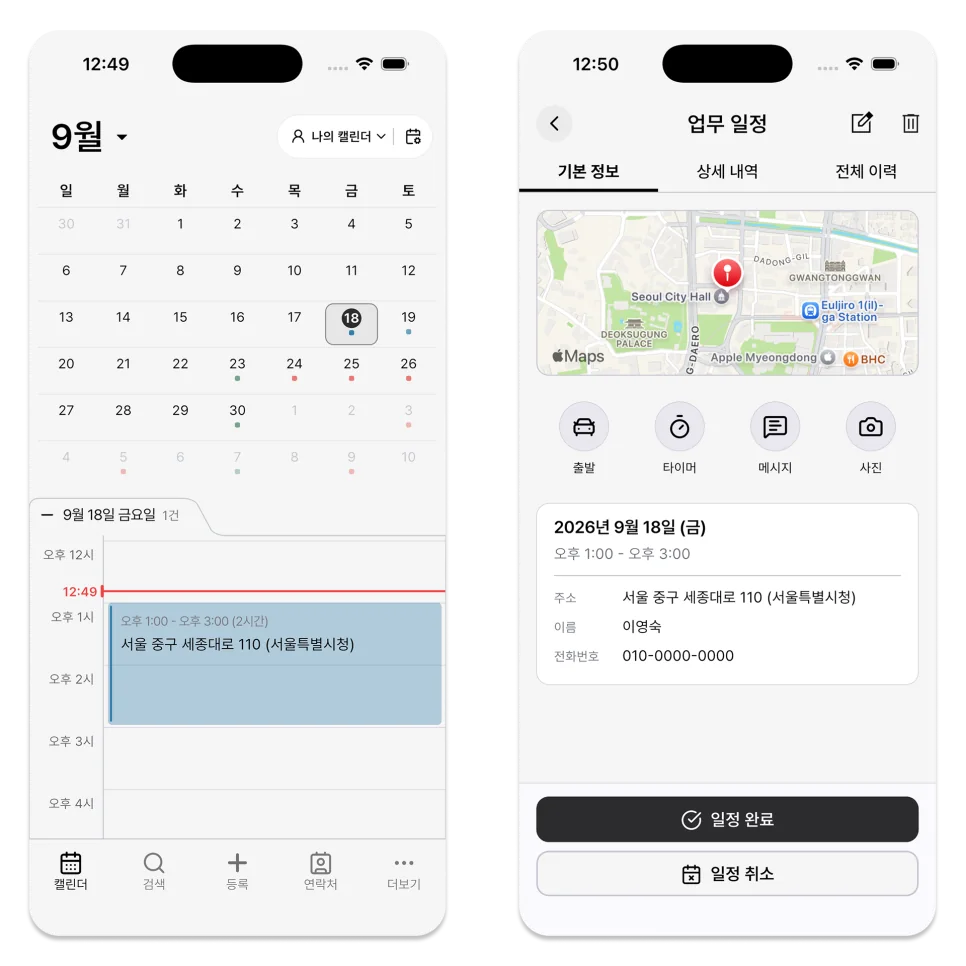
The ILJI Calendar shows the month together with the selected day's schedules.
You can move to the previous or next month by clicking the arrow next to the month name.
Select a date and the list below changes to that day's schedules in time order.
To view another month and return to the current date, simply press the Today button.
2. Adjust the Calendar and Schedule List
You need different screen space when you want to see the entire month laid out and when you want to read a detailed schedule for each day.
Expand the month when you want to compare busy and open days.
Collapse it or switch to the week view when you need more room for the schedule list.
3. Press and Hold a Date to Create a Schedule
If you have already decided on the date you want to schedule, you can press and hold that date on the calendar.
The selected date is reflected on the registration screen, reducing the process of finding the date again after opening the registration menu.
Double-check the start date before saving to make sure you haven't selected the wrong date.
4. Search When You Remember the Details
If you don't know the exact date but remember the title, name, phone number, location, or part of the note, use the Search tab.
Rather than checking several months in succession, it is more efficient to look up past and upcoming schedules using words you remember.
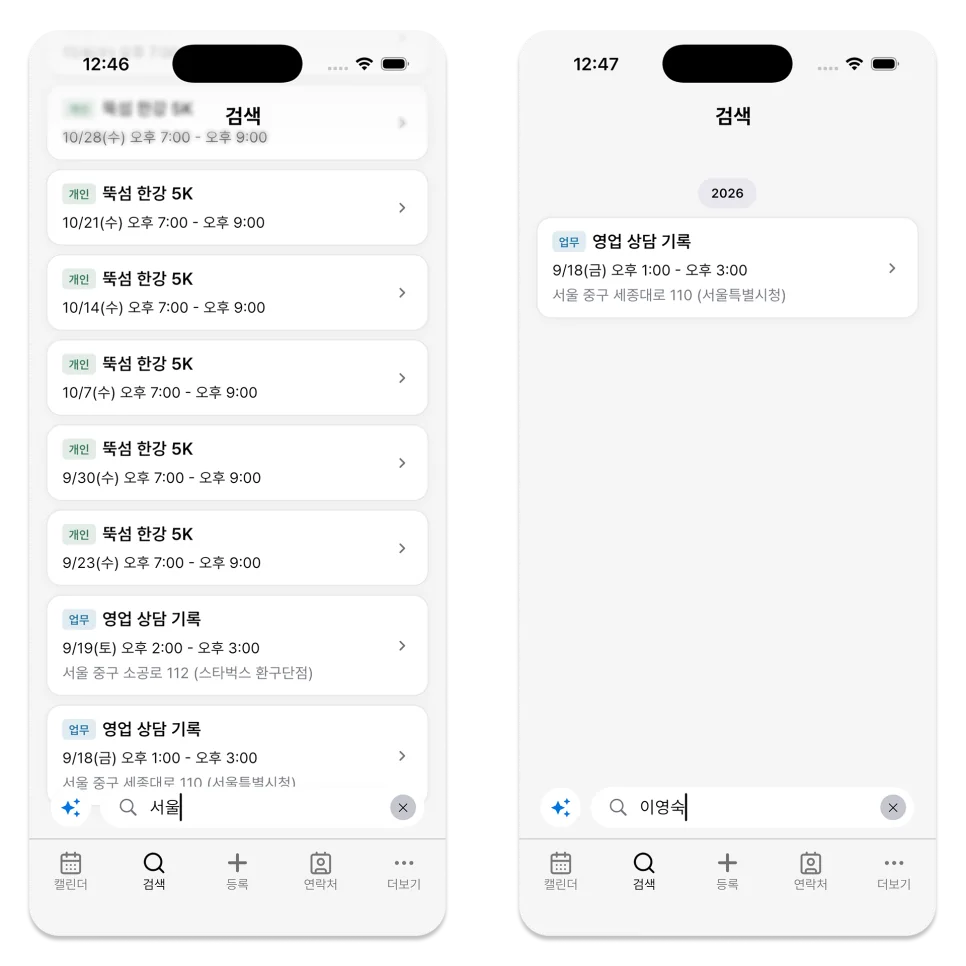
Use the calendar when you remember the date and Search when you remember the content.
5. Check Days When Personal and Team Schedules Overlap
In My Calendar, show schedules from a team calendar when you need them.
This is useful for checking whether personal commitments and team work overlap.
If you only want to focus on the team schedule, click the calendar name at the top to switch to the team calendar.
The calendar is not a test of memory.
Do not scroll through months without a plan. Start with the clue you actually remember.
When checking a day based on a date, try using the calendar and schedule list, and when the content is a clue, such as a title or person, use search.
Open this week's schedules in ILJI to compare the month view with the order of each day.