A class every Monday and a business trip from Monday through Wednesday both cover multiple dates. They are not the same kind of schedule.
The class creates a new schedule each Monday. The trip is one schedule that continues for several days.
Once you know the difference, the result on the calendar is easier to predict.

1. Use an All-Day Schedule When the Time Does Not Matter
Use All day for anniversaries, holidays, or records where a start and end time do not matter.
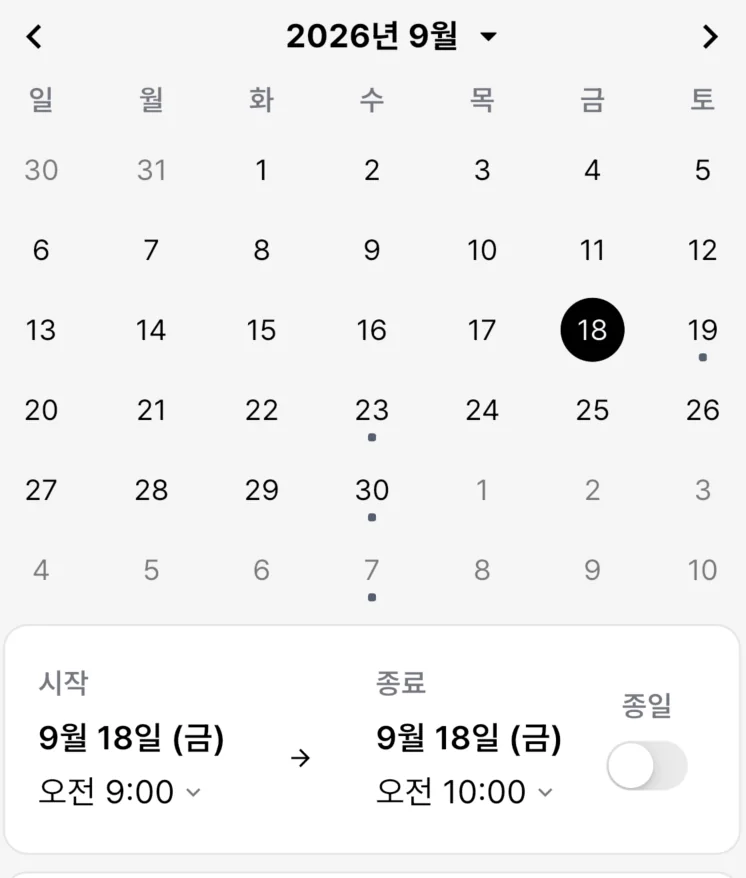
If you turn on All Day, the display will focus on the date rather than the time zone.
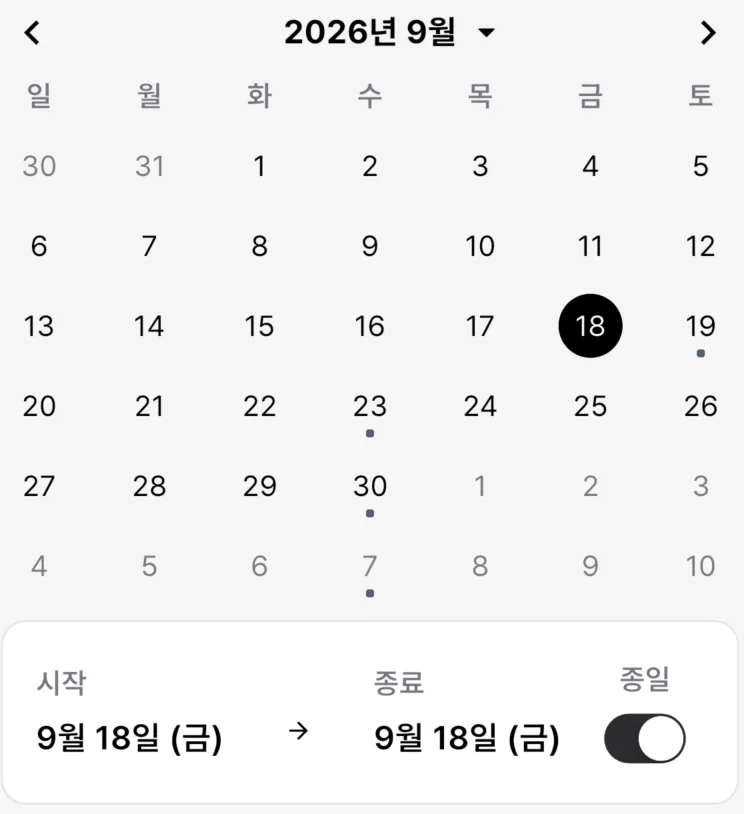
For work schedules, confirm that the selected work form supports all-day schedules.
2. Use a Date-Range Schedule for Work That Spans Several Days
Set an end date when travel, event preparation, construction, or another piece of work continues as one schedule from start to finish.
A date range does not create the same work again each day. It represents one schedule continuing across several days.
Save your start and end dates and check that both dates match in your monthly calendar.

3. Use a Recurring Schedule for Repeating Work
Use recurrence when each class, workout, regular meeting, or inspection should be a new schedule.
ILJI allows you to choose to repeat daily, weekly, monthly or yearly.
You can keep repeating, or you can set an end date or number of repetitions to end it.

If it is a class or project with a fixed period, it is better to enter the end conditions in advance.
4. Check the Scope Before Editing a Recurring Schedule
When editing or deleting a recurring schedule, choose which occurrences the change applies to.
- This schedule only: Change the selected date only
- This and future schedules: Change schedules from the selected date onward
- All schedules: Apply the change to the entire recurrence
For example, if class is only one hour late this week, select ‘This schedule only’.
If all class times will change starting next month, it is appropriate to open the first date when the new time starts and select ‘This schedule and future schedules’.
5. Deleting Is Different from Editing
Deleting a recurring schedule removes the selected range of schedules altogether.
Deleted schedules cannot be restored, so check again whether you want to delete only this schedule or future schedules.
If you need to keep a record of what has actually been done or canceled, you can also use the Completed or Cancel status instead of Delete.
A schedule covering several dates is not always recurring.
Try to classify them based on whether they continue one after another or start anew on each day.
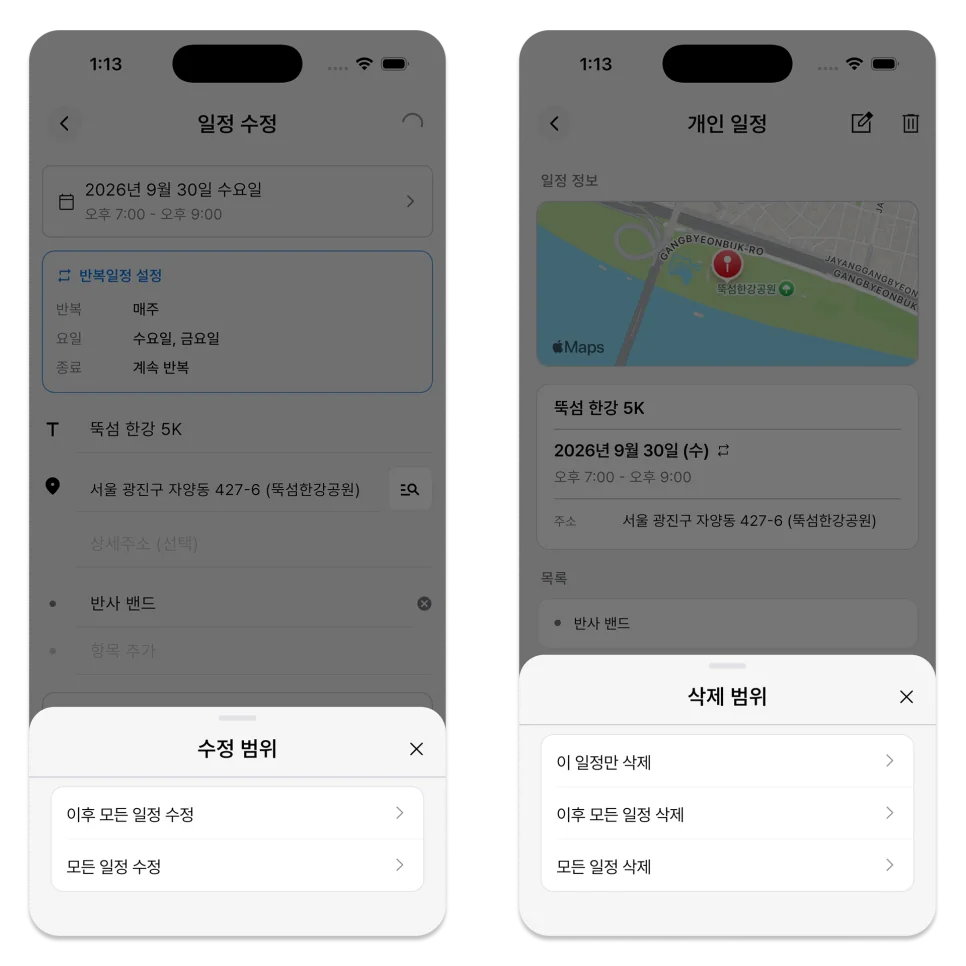
When modifying a recurring schedule in ILJI, check both the start date and scope of the new rule to avoid unintentionally changing past records.