Rescheduling fails less from editing the time than from the team and customer ending up with different versions of the appointment.
A customer may ask to move tomorrow’s visit from 2:00 to 3:00, and the coordinator may post it in chat, while a colleague still leaves according to the old calendar. A small team benefits from a short, consistent sequence.

A Four-Step Rescheduling Sequence
- Check the impact on assignees, travel, and equipment before confirming the new time.
- Update the shared schedule the team treats as the source of truth.
- Tell companions and preparation owners exactly what changed.
- Do not mark a canceled visit complete; assign responsibility for rescheduling it.
Say “Kim’s Tuesday visit moved from 2:00 to 3:00; the assignee is unchanged” instead of “the schedule changed.” Reconfirm the new time and location with the customer in one message.
After Several Requests, Keep One Final Appointment
If a customer requests 2:00, then 3:00, then 4:00, do not rely on memory of the conversation. Match the final confirmed time to the shared schedule and leave a short reason. Do not present an unconfirmed request as a confirmed visit.
Pass the Work Context When the Assignee Changes
Give the new assignee the visit purpose, prior conversation, preparation, and special requests. For work requiring specific qualifications or experience, confirm that the replacement can take it before promising the customer. “Please cover this visit” is not a complete handoff.
A One-Line Change Record Can Be Enough
- What changed?
- Who confirmed it?
- What was the customer told?
- What happens next?
For example: “Thursday visit moved from 2:00 to 4:00 / assignee confirmed / customer reconfirmed by text / preparation unchanged.” Over a month, these notes can reveal repeated causes such as delays on a certain day or insufficient travel time.
Check the Rest of the Day for Knock-On Effects
If moving the first visit by an hour removes the travel time to the second, editing the first appointment is not enough. Review the assignee’s later schedules in order and contact affected customers early.
Sharing Schedule Changes in ILJI
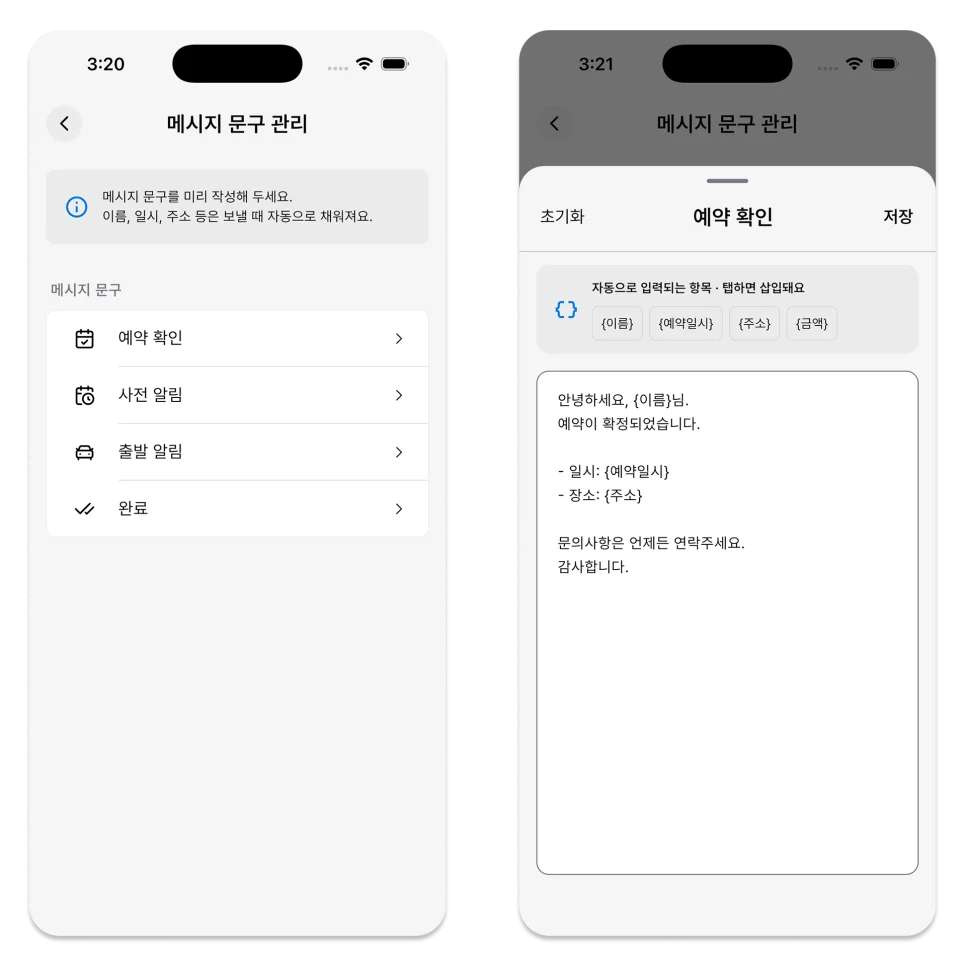
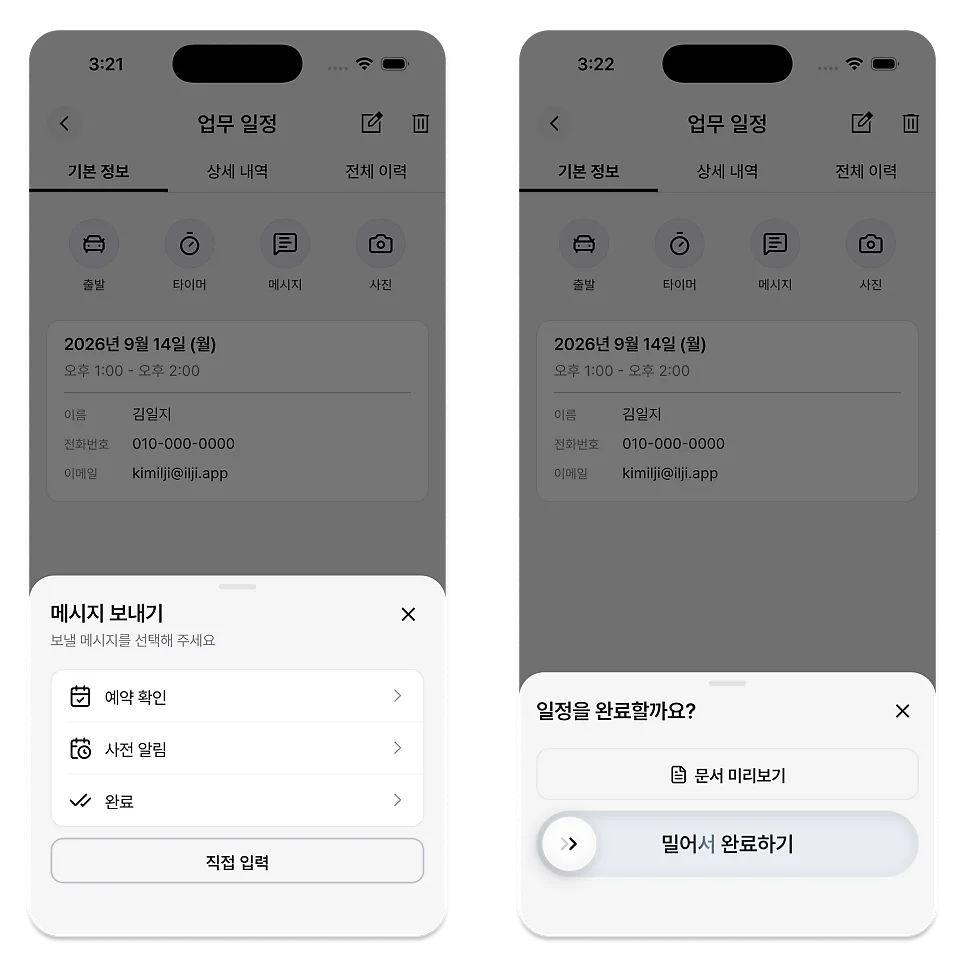
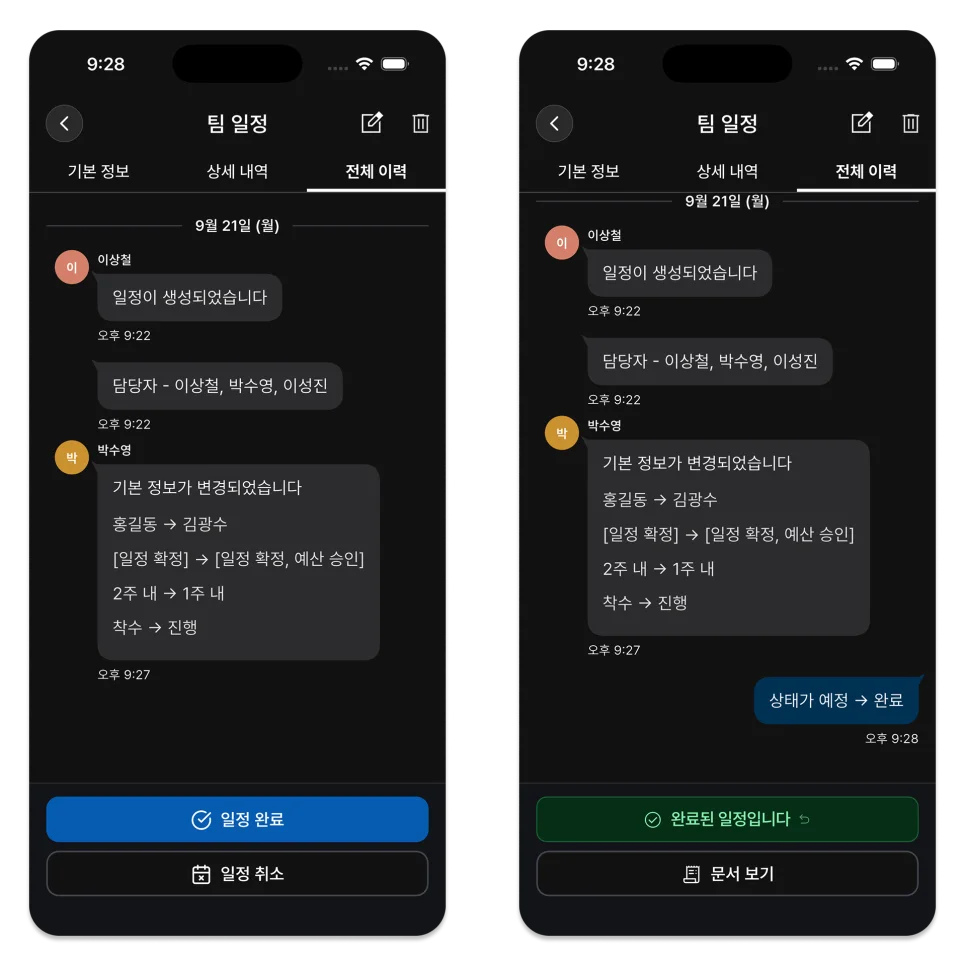
Edit a shared team schedule and review its assignee and completion or cancellation state. The schedule detail includes a change history, and after a time change you can review a reservation-change message and open the phone’s SMS app. The user completes the actual send in that app.
The goal is not to send more notifications. It is to keep the team and customer working from the same final appointment.