Sometimes marking a job complete is enough. Other times, you need to share what was done and the result.
Instead of copying the schedule's details and photos into another file, review the work record as a document and share it as a PDF.
1. Use a Work Form That Supports Documents
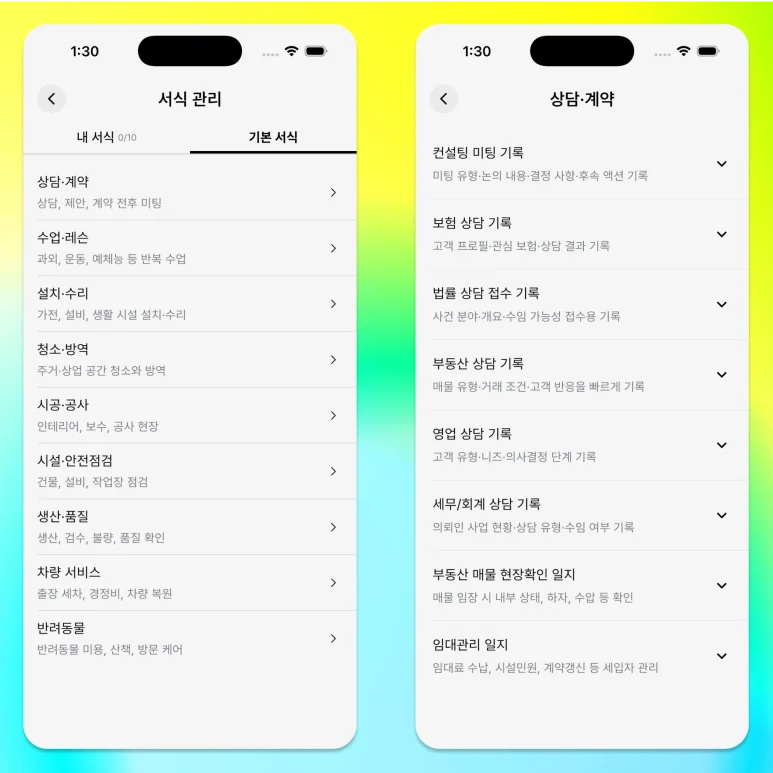
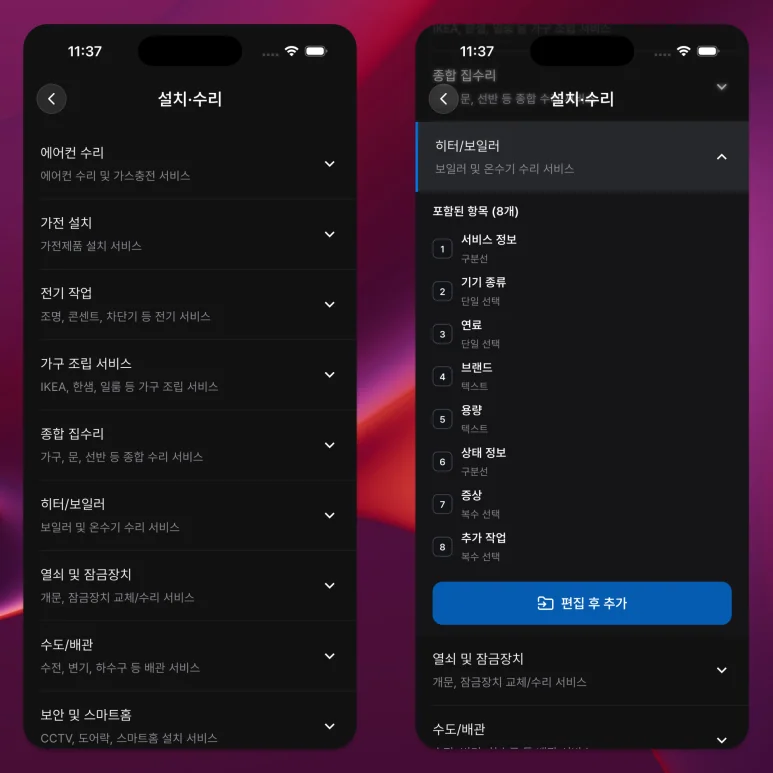
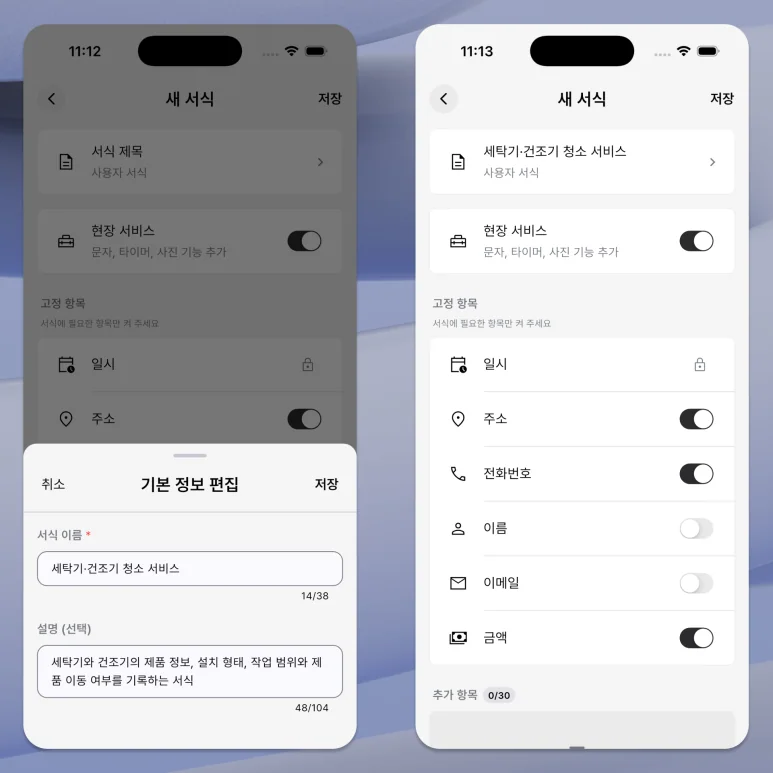
Documents are available with supported work forms, not Quick form.
The document preview uses the name, work details, checklist, amount, photos, and other information stored in the schedule.
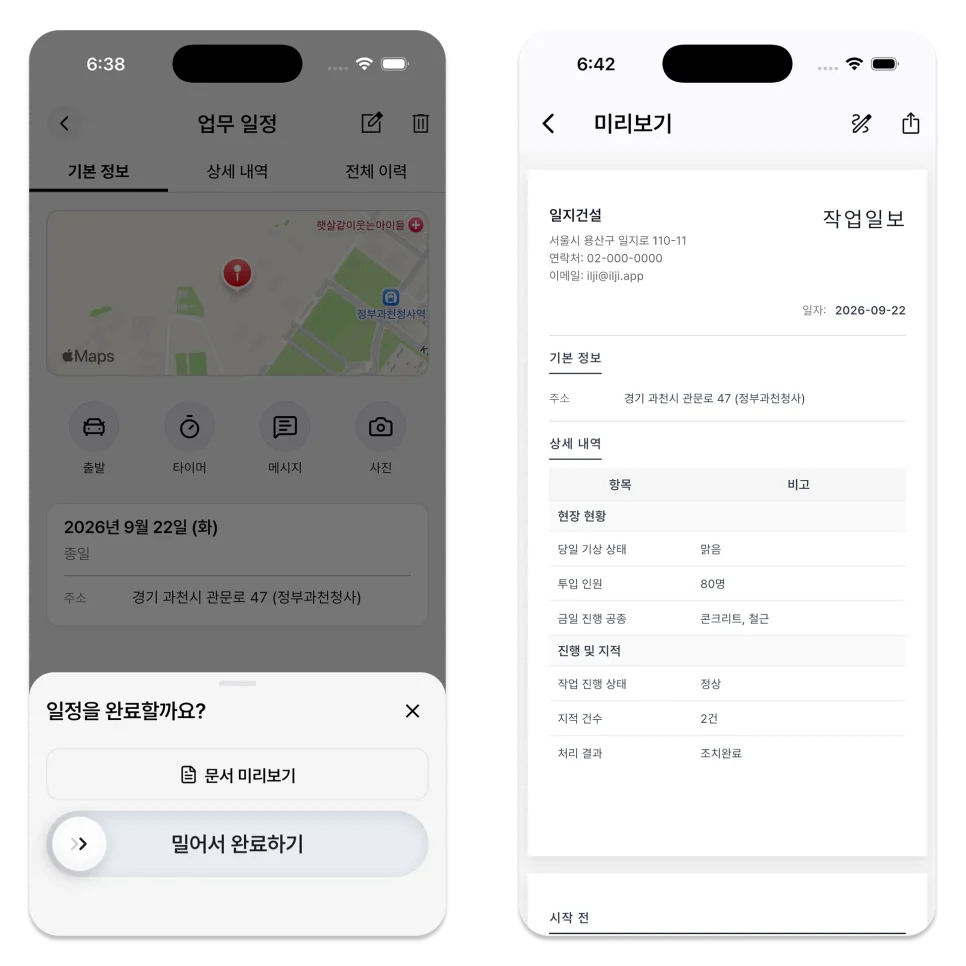
Choose a document format that fits the work, such as a report, statement, invoice, or checklist.
Schedules created with Quick form do not show the document preview.
2. Review the Work Record Before Completing the Schedule
On the work schedule details screen, look at the following:
- Are the date and location correct?
- Are the checklist and required fields complete?
- Has the timer stopped?
- Have the required photos finished uploading?
- If an amount appears, is it correct?
Required fields must be filled before the schedule can be completed.
3. Set the Shared Document Details
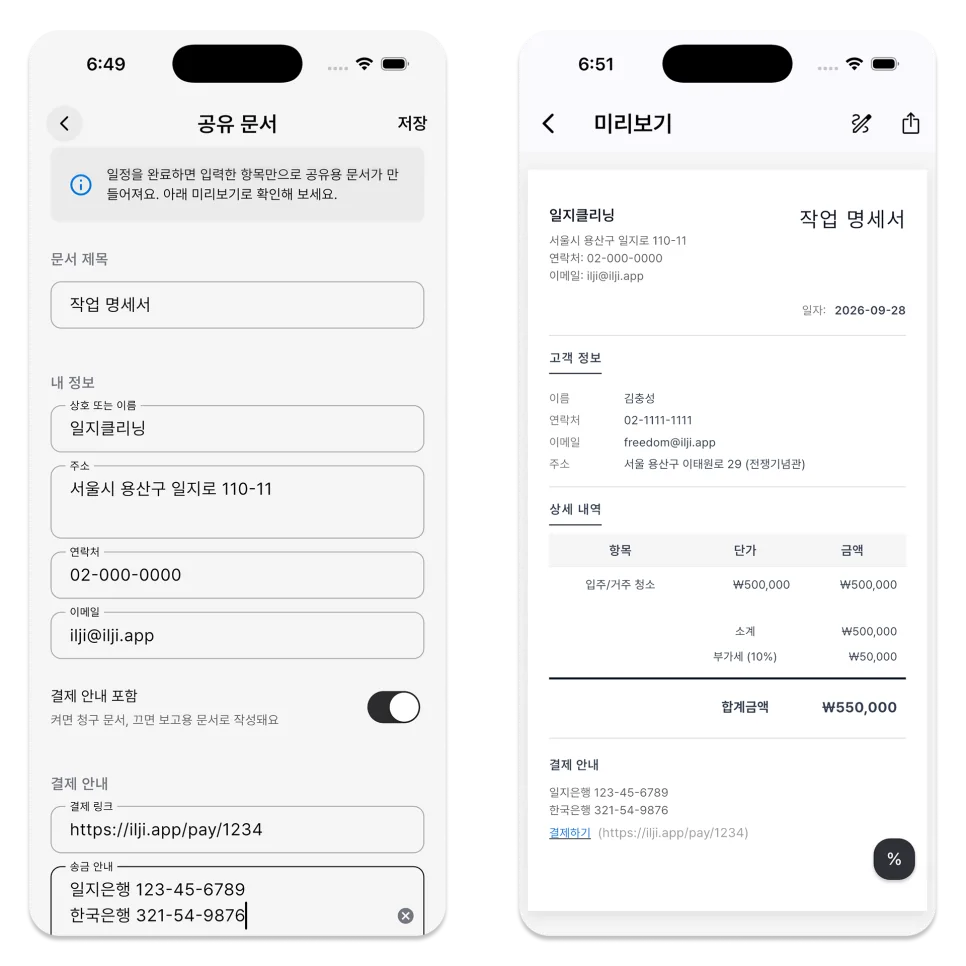
In the shared document in More, you can set the document title and basic information to display.
Enter information such as name, representative, address and contact information, payment instructions, or account text only if necessary.
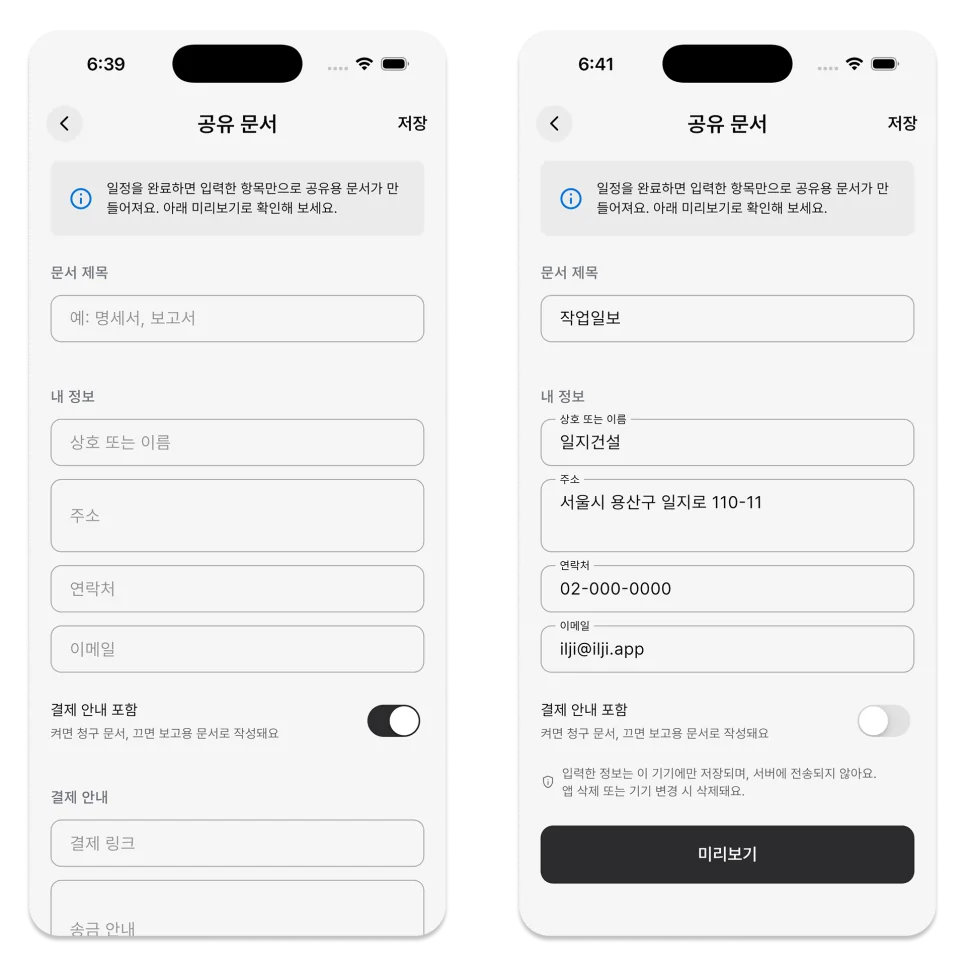
You can choose whether to include amounts and payment details or use it as a report focused on business results.
The settings preview demonstrates the layout. Open the document from a completed work schedule to verify its actual content.
4. Review the Document and Collect a Signature if Needed
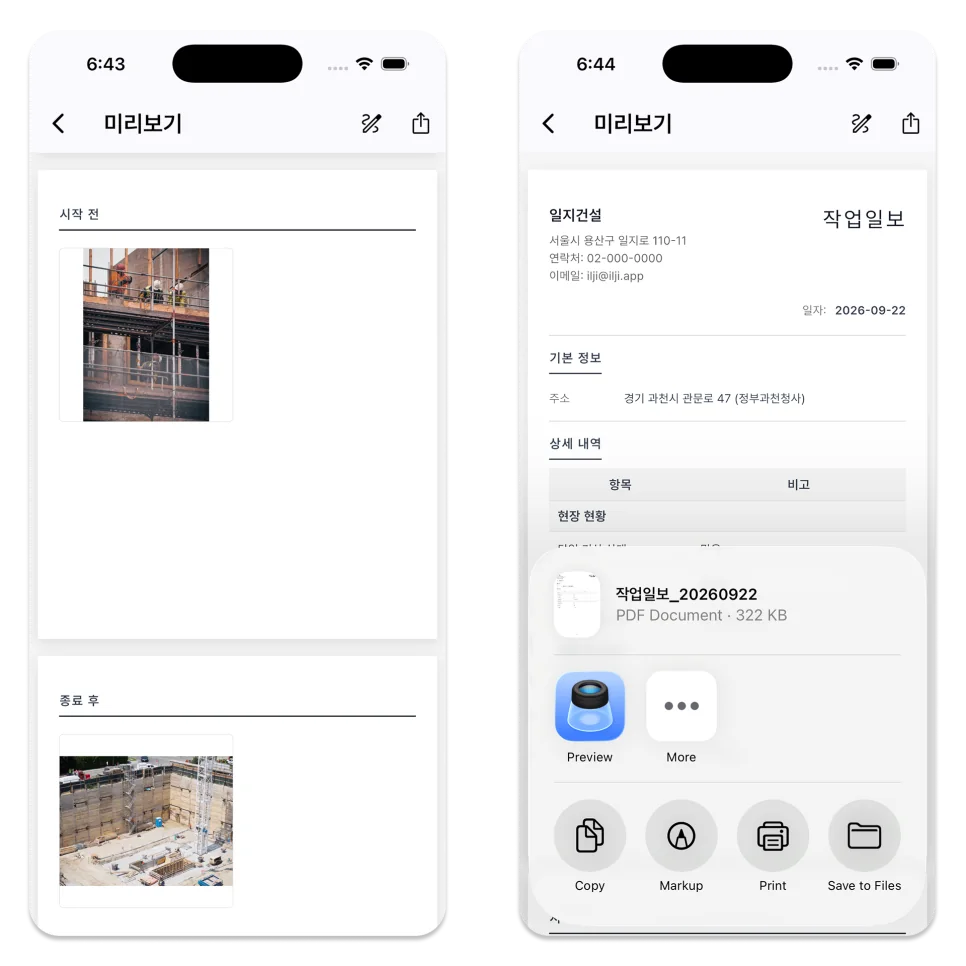
Open the document preview on your completed schedule to see task details, photos, and amounts.
A signature can be collected on the screen. Signing again replaces the earlier signature on that schedule.
Your signature is stored on your current device and doesn't automatically sync to other devices or accounts.
5. The PDF Uses the Schedule's Current Data
When you select Share PDF in the document preview, the file is created based on your current schedule and shared document settings.
Use the device's share menu to send the PDF through KakaoTalk, Messages, email, or file storage.
ILJI does not keep a separate list of issued documents. To create the document again, open the original work schedule and generate a new PDF from its current content.
Keep important final PDFs separate
If you modify schedule content or document settings, the content of the next PDF you create may also change.
It is best to create documents that have been signed or require a final copy and then store them separately in a safe storage space.
Open one completed work schedule in ILJI and review how its record appears in the document.